Steps
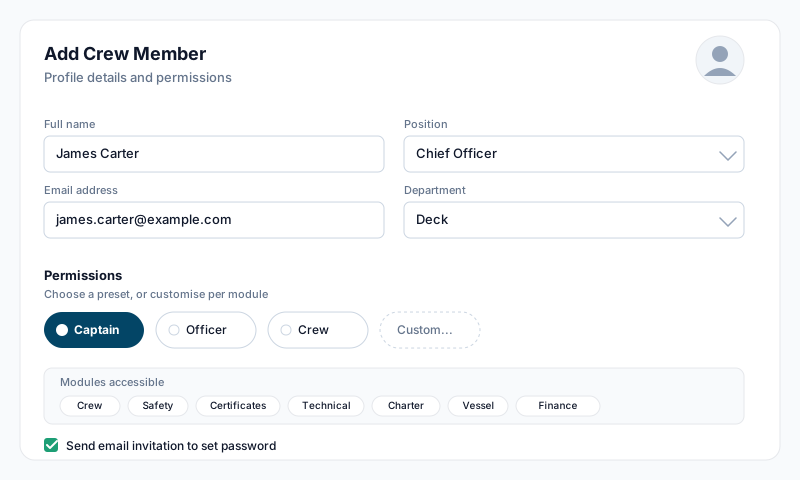
- •Navigate to Crew from the dashboard or module bar
- •Click Add Crew Member (top right) — this opens the new crew form
- •Fill in the required fields:
- •First Name
- •Last Name
- •Position — chosen from a list of ~80 yacht positions (Captain, Chief Officer, Chief Stewardess, etc.)
- •Department — AVIT, Bridge, Deck, Engineering, Galley, Interior, Security, or Other
- •Start Date
- •Permission preset (see below)
- •Optionally fill in:
- •Email, Contract Type, Place of Embarkation, Home Port, attachments (passport, contract, CV)
- •Leave Allowance — choose Days per year with your own day count or a Ratio of leave to days worked. The default follows the Contract Type: Permanent and Temporary contracts default to 42 days/year, Rotational contracts default to a 1:1 ratio (equal rotation — the off-rotation period is the paid leave). See the Leave Management guide for details on how each method accrues.
- •Click Add Crew Member at the bottom of the form to save
If an email address is entered, a Send invitation email immediately checkbox appears — tick it to email the crew member a sign-up link as soon as the profile is created. Email is optional, but without one they cannot log in.
Future Joiners (Pending) and Confidential Hires
If the Start Date is in the future, the Status field switches to Pending automatically. Pending crew are left out of the manning count and the Hours of Rest roster until they join.
To keep a hire private until they join — for example, a replacement not yet announced to the crew — tick Confidential hire under Status. It only appears while Status is Pending.
- •Who can see them: account owners, account admins and crew with employment access. They appear in the Crew List and on their own profile only, marked with a padlock.
- •Everyone else: sees nothing — not in the Crew List, manning, rotation planner, Hours of Rest, pickers or reports.
- •Already added? Open their profile while they are Pending and click Mark confidential (or Remove confidential to undo).
- •CSV import: tick Mark future joiners as confidential to apply it to every row whose start date has not arrived.
On the day their contract puts them aboard (normally the start date), they are moved to On Board automatically overnight and the confidential flag is removed, so they become visible to everyone who can see the crew list. No action is needed.
Notes:
- •Only account owners, account admins and crew with employment access can set or remove the flag
- •Setting someone to On Board early (for example, for a handover) ends confidentiality straight away
- •Crew with no employment contract are not moved to On Board automatically — update their status by hand
Permissions
There are two related permission settings on this form:
- •Permission preset (required) controls access to the Crew module — choose View Only, Head of Department, or Full Access. Each preset configures a set of crew-related flags (view profiles, edit profiles, view manning, access employment, approve leave, view medical, conduct appraisals, and so on).
- •Other Module Access Settings controls access to each of the other modules — Safety, Certificates, Technical, Vessel, Charter, Finance — at one of three levels: None, Read Only, or Read & Write. Quick-set buttons let you apply a level to all modules at once.
After creation, finer-grained tweaks (including the Custom preset and individual permission flags) are made from the crew profile's Permissions tab.
Tips
- •If you provide an email and tick Send invitation email immediately, the crew member receives a link to set their password — otherwise you can send the invitation later from their profile
- •They will only see the modules and crew sections you have given them access to
- •Attachments added at creation time appear on the crew profile under their documents — you can also add them later
- •Crew profiles include sections for personal details, employment history, documents and qualifications, medical records, leave, hours of rest, performance appraisals, familiarisation, and the Seafarer Employment Agreement (SEA)