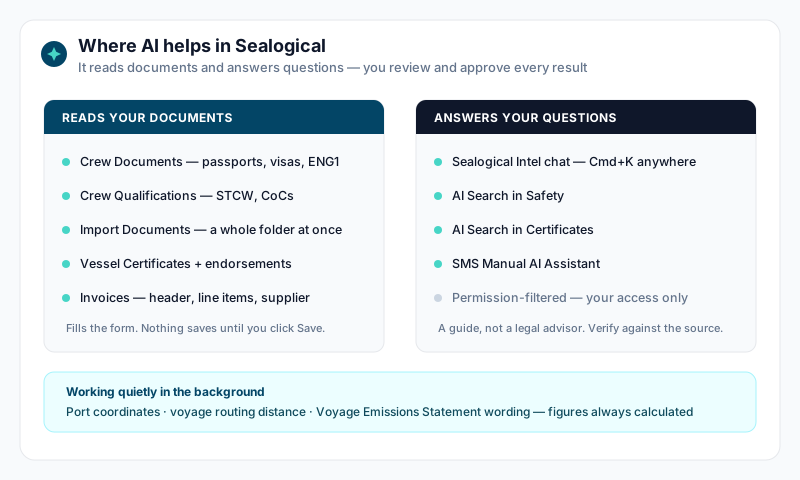
Sealogical uses AI for two jobs: reading documents so you don't have to type what's already printed on them, and answering questions about your vessel and the regulations.
Every AI feature works the same way — it fills in a form or drafts an answer, and you check it and approve it. Nothing is written to a crew profile, a certificate register, or an invoice until you click Save or Import.
Where to Find It
Reading documents — look for the Scan with AI button:
- •Crew profile → Documents tab — passports, seaman's books, visas, driving licence, Medical/ENG1
- •Crew profile → Qualifications tab — STCW certificates, CoCs, and other qualifications
- •Crew profile → Import Documents — a whole folder of documents in one pass
- •Certificates — vessel certificates and endorsements
- •Finance → Invoices → New Invoice — Scan Invoice with AI
Answering questions:
- •Sealogical Intel — press Cmd+K (or Ctrl+K) anywhere, then switch to Chat
- •Safety → the search box on any Safety page — filters that page as you type; when nothing on it matches, it offers to search safety documents and drills too
- •Certificates → the search box above the register — filters the table as you type, and offers to search the whole register when nothing matches
- •Safety → SMS Manual → AI Assistant — context-aware help on the section you're reading
Scanning a Single Crew Document
- •Open the crew profile and go to the Documents tab
- •Click the card for the document type you're uploading (e.g. Passport)
- •Choose the file — PDF, JPEG, PNG, WebP, or HEIC, up to 50 MB
- •Click Scan with AI and wait for "Fields extracted successfully"
- •Check every field against the document, then Save
The scan fills in:
- •Document number
- •Issuing country
- •Issuing office / authority
- •Issue date
- •Expiry date (skipped if you've ticked "no expiry")
AI scanning is offered on: Passport (1–3), Seaman's Discharge Book (1–2), Visa B1, Visa B1/B2, Visa C1/D, Visa Schengen, Visa Other (1–3), Driving License, and Medical/ENG1. Other document types (CV, next of kin, health declaration) are free-form and upload without a scan.
Scan before you type anything — on this tab, extracted values fill the fields directly.
Who can use it: the same people who can save the document. That includes crew scanning documents onto their own profile — you don't need Operations write access for that.
Scanning a Qualification
- •Open the crew profile and go to the Qualifications tab
- •Click Add Qualification and pick the qualification type first — the scan uses it as a hint and reads the document more accurately
- •Choose the file and click Scan with AI
- •Review, then save
The scan fills in the certificate number, issuing authority, start (issue) date, and expiry date.
On this tab the AI only fills fields you've left blank. If you'd already typed a certificate number, your value is kept and the dialog tells you which fields it left alone — so you never lose manual entry to a scan.
Importing a Whole Folder — the Bulk Tool
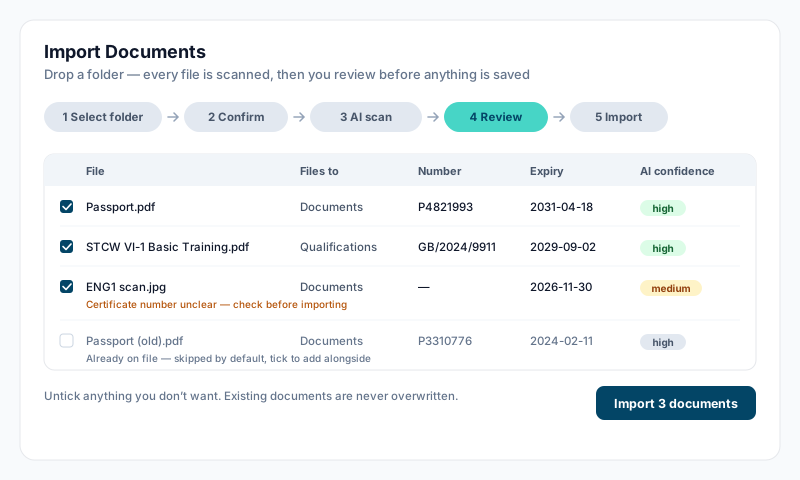
If a crew member arrives with a folder of scans, don't upload them one at a time. On the crew profile, click Import Documents (top right) and the whole folder is scanned in one pass.
Who sees the button: account owners and account administrators. It's hidden on profiles whose contract has ended.
How it works
- •Select — drag a folder (or individual files) onto the drop zone, or use Select folder / Select files. Accepted: PDF, JPG, JPEG, PNG, WebP, HEIC, HEIF. Hidden and empty files are skipped automatically.
- •Confirm — you see the file list and where each one is heading (Documents or Qualifications). Click Scan … documents with AI.
- •AI scan — documents are scanned three at a time for type, number, and dates. Keep the tab open. Anything that fails can be retried, or carried through to the review with blank fields for manual entry.
- •Review — the important step. Check every row, fix anything wrong, change the destination or type, and untick anything you don't want. Rows flagged with a warning or medium/low confidence deserve a proper look.
- •Import — files are uploaded and filed to the Documents and Qualifications tabs.
Folder naming helps
Files inside folders named Certificates, Fitness, or Travel Documents are pre-sorted to the right destination before the scan even starts. It's not required — you can change every row in the review — but it saves clicks:
- •
Travel Documents→ passports, visas, seaman's books - •
Fitness→ Medical / ENG1 - •
Certificates→ STCW, CoCs, and other qualifications
Existing documents are never overwritten
- •If the crew member already has that document with a file attached, the row is flagged and unticked by default. Tick it to add the new one alongside — the old one stays.
- •If they have an entry with data but no file, the file is attached to that existing entry and only its blank dates are filled in.
- •Nothing at all is saved until you click Import — up to that point the files are only read from your computer.
If some rows fail during the import, use Back to review and retry — rows that already imported won't be duplicated.
Importing for a whole crew at once (a folder per crew member, all in one go) is also possible — ask Sealogical support, who run the same wizard across a vessel.
Scanning Vessel Certificates
- •Open Certificates and pick the section, then the certificate
- •Click to upload, with Document Type set to Certificate or Endorsement (AI scanning isn't offered for Supporting Documents or Supplements)
- •Choose the file and click Scan with AI
Who can use it: anyone who can upload the certificate — Certificates read and write access is enough.
The scan fills the document number, start and expiry dates, endorsement dates where present, and suggests the certificate type and document name.
For Registry and Insurance certificates a Sync to module tick-box appears after the scan — leave it ticked to push the extracted data straight into the Vessel Details record or the Insurance policy, so you don't type the same registration or policy details twice. See the Certificates guide for the full upload flow.
Scanning Invoices
In Finance → Invoices → New Invoice, drop a supplier invoice onto the Scan Invoice with AI card (PDF, JPG, PNG, WebP, or HEIC — up to 10 MB). The scan:
- •Reads the invoice number, invoice date, due date, and currency
- •Extracts every line item — description, quantity, unit, unit price, tax rate, and a suggested category
- •Matches the supplier from your supplier list (by tax ID, IBAN, email, or name). A weak name match is flagged for you to confirm rather than selected automatically
- •Matches a Purchase Order if the invoice quotes one, and pulls the PO's supplier through
- •Attaches the scanned file to the invoice automatically, so you don't upload it twice
You get a High / Medium / Low confidence rating and a list of any warnings. Re-scan with AI re-reads the file if the first pass looked wrong. See the Invoices guide for approval and payment steps.
The AI Assistants
- •Sealogical Intel chat — the general-purpose assistant. It draws on your vessel's records and a curated maritime knowledge base (ISM, MLC, STCW, MARPOL, COLREGS, PSC, flag state, and more) and cites regulation references where it can. See the Sealogical Intel guide.
- •Wider Safety search — start in the search box on any Safety page. It filters what is in front of you instantly. When nothing on the page matches, it offers to search wider — SMS sections, forms, safety documents and drills — and carries your words across, so you never type them twice. Ask in plain English ("fire drill procedure", "who signs off a near miss"): the wider search expands your phrase into related terms before looking.
- •Wider certificate search — the same, from the search box above the certificate register. Try "hull machinery" or "expired SOLAS".
- •SMS AI Assistant — the AI panel inside the SMS Manual. It knows which chapter and section you're reading, offers suggested prompts that change by chapter, and can summarise a section or explain which ISM requirements apply. See the SMS Manual guide.
All of them are permission-filtered — the assistants can only reach records you're already allowed to see.
AI You Never Have to Trigger
Some AI runs quietly in the background, with no button:
- •Port coordinates — when a movement or voyage names a port that isn't in the built-in database, its position is resolved so the voyage can be plotted
- •Voyage distance — for an active voyage between known ports, a routed distance is estimated instead of a straight line. The Data confidence strip on the vessel tracking page tells you which method produced the figure
- •Voyage Emissions Statement — the PDF opens with a plain-English summary of the voyage. The figures are always calculated, never AI-generated — the AI only puts them into sentences, and a plain template takes over if it's unavailable
Getting the Best Results
- •One document per file. A single PDF holding a passport, an ENG1, and two visas will only be read as one document.
- •Include the whole page. Cropped edges lose the machine-readable strip at the bottom of a passport, which is where the most reliable data is.
- •Flat, in focus, no glare. A phone photo at an angle, or a photo of a screen, reads far worse than a flatbed scan.
- •A real PDF beats a photo every time.
- •Pick the document or qualification type first — the scan uses it as a hint.
- •Scan first, correct afterwards. Let the AI fill the form, then fix what's wrong.
- •Split very large PDFs. A 60-page scan can take minutes and is more likely to time out.
- •Check the dates hardest. A wrong expiry date is the one error that quietly breaks compliance reporting later.
Reading the Warnings
After a scan you'll see a confidence badge and, sometimes, warnings. They're worth reading:
- •Low confidence — the document was hard to read. Check every field, not just the flagged ones.
- •Document has expired / expires in N days — the AI read a date in the past or close to it. Useful catch, but confirm it's the right date.
- •Passport number format may not match the issuing country's usual pattern — usually a misread character.
- •Duplicate document number already assigned to another crew member on this vessel — nearly always the wrong file, or a document filed against the wrong person.
When a Scan Fails
Nothing is lost — the form stays open and you can type the fields in by hand, then save as normal. The file itself still uploads.
- •"AI extraction took too long" — usually a large multi-page PDF. Try again, or split the file.
- •"The AI service is temporarily unavailable" / rate limit — wait a moment and retry.
- •File too large — the scan limit is 50 MB for documents and certificates, 10 MB for invoices.
- •Unsupported file type — scanning needs PDF, JPEG, PNG, WebP, or HEIC. Word and Excel files upload fine but can't be scanned.
In the bulk import, failed rows get a Retry failed button, and any row that still won't scan carries through to the review with empty fields you can fill in yourself.
Privacy and Limits
- •Documents are scanned by Anthropic's Claude models, reached through the Vercel AI Gateway. Anthropic does not train on data sent through the API, and retains it only briefly for abuse monitoring.
- •The copy used for the scan is held in a temporary store and deleted immediately after the scan finishes, whether it succeeded or not. The document itself is only written to Sealogical's secure storage when you save.
- •Scanning requires exactly the same permission as saving the document — never more, never less — and is locked to your own vessel.
- •The AI is an assistant, not the record. Whatever you approve and save is your entry, and your responsibility.
- •For regulatory questions, the assistants are a guide, not a legal advisor — always verify critical compliance answers against the official source documents.
Tips
- •The AI is at its best on structured documents — passports, certificates, invoices. It's weakest on handwriting and photocopies of photocopies
- •For a new crew member with a folder of scans, Import Documents is far quicker than card-by-card uploads
- •Scanning a certificate and ticking Sync to module keeps Vessel Details and Insurance policies in step without re-typing
- •Keep your supplier list tidy — accurate suppliers make invoice matching land first time
- •If a scan gets a field wrong twice, just type it — the review step exists precisely so a bad read costs you seconds, not a wrong record