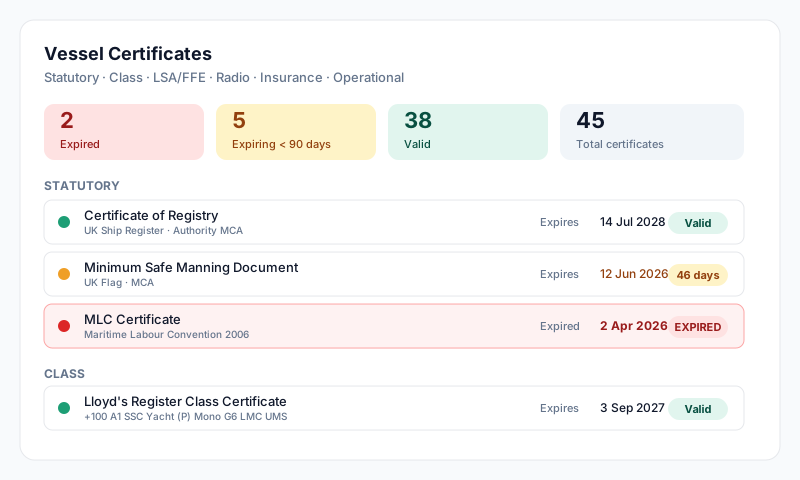
Status Summary
Certificates open by default to a Status Summary view — a single sortable, filterable table covering every certificate type across every section. Use this view to:
- •Filter by status (Expired, Expiring Soon, Expiring within 90 days, Valid, Not Uploaded)
- •Search by name or section
- •Sort by status, name, section, or expiry
- •Export the table to CSV (a separate "Download all" action downloads the certificate files themselves)
- •Click any row to jump straight into the certificate detail
How Certificates Are Organised
Certificates are grouped into sections that you see in the left sidebar. Sections are vessel-customisable (Settings → Certificates), and each vessel starts with a default set seeded from the system. Common sections include:
- •Registration — Certificate of Registry, Provisional Certificate of Registry
- •Fiscal — Tax Certificate, Customs Documentation
- •Insurance — P&I, Hull & Machinery, COFR
- •Class / Tonnage / Loadline — Class certificate, International Tonnage, Load Line
- •Safety / Compliance — SMC, ISSC, Cargo Ship Safety Construction/Equipment/Radio
- •Maritime Labour Compliance — MLC Certificate, DMLC Part I & II
- •Radio — Ship Radio Licence, GMDSS
- •Environment — IOPP, IAPP, IEEC, Garbage Management Plan, Ballast Water Management
- •LSA / FFE / Medical — Life-saving appliances, fire-fighting equipment, medical stores
Sections marked with a ship icon are fleet-wide — the same definition shared across every vessel in the fleet.
Document Types
For each certificate, you can upload more than one document. The system distinguishes four document types:
- •Certificate — the main certificate document (carries Start Date, Expiry Date, and Endorsement Period)
- •Endorsement — an endorsement issued against an existing certificate (carries Endorsement Date)
- •Supporting Document — survey reports, equivalents, or other supporting material (carries Document Date)
- •Supplement — supplementary records attached to the certificate
Endorsement Periods
Statutory certificates such as SMC, ISSC, MLC, IOPP, and class certificates are typically valid for five years but require periodic endorsement during that time — annual, intermediate, or renewal. Sealogical tracks this separately from the main expiry, with Endorsement Period Start Date and End Date fields, so you can see at a glance when the next endorsement window opens and closes — independent of the certificate's overall validity.
Adding a Certificate
- •Open Certificates from the dashboard
- •In the sidebar, click the section the certificate belongs to (or click + Add Certificate Type if the type doesn't exist yet)
- •Click an existing certificate name to upload, or + Add Document for a new entry
- •Drop or select a file (PDF, JPEG, PNG, HEIC, or WebP — up to the configured size limit)
- •Click Scan with AI — the system reads the document and auto-fills:
- •Document number
- •Issuing country and office
- •Start and expiry dates
- •Endorsement period (where applicable)
- •Review the extracted fields, set the Certificate Type (No Expiration / Interim / Annual / Intermediate / Short term / Two Years), add a comment if useful, and save
For Registry and Insurance certificates, an additional Sync to module checkbox appears after AI extraction — tick it to push the extracted data into the Vessel Details record (for Registry) or the Insurance policy (for Insurance), keeping the underlying registers in sync without re-typing.
Setting Up a Register for a New Vessel
Certificates are uploaded one document at a time, from the certificate they belong to (see Adding a Certificate above). There is no bulk upload or CSV import on the Certificates screen.
If you are bringing a whole register across (a new vessel, or a folder of certificates exported from another system), contact Sealogical support. We can load the certificate list and attach a folder of certificate files for you in one pass.
Expiry Tracking and Alerts
Every certificate document is given a status by the system based on its expiry date:
- •Valid — more than 90 days until expiry
- •Expiring within 90 days — yellow warning
- •Expiring soon — within 30 days, amber/orange
- •Expired — past the expiry date, red
- •Not uploaded — certificate type exists but no document has been uploaded yet
Expiring and expired certificates appear on the dashboard, in the Status Summary, and in the Notifications weekly digest email.
Tips
- •Keep certificates up to date — an expired statutory certificate means PSC detention
- •Always upload the actual certificate file, not just the details — auditors and PSC inspectors will want to see it
- •Pay close attention to endorsement periods, not just the main expiry — a certificate can be "valid" overall but still need an annual endorsement done within a narrow window
- •Use AI extraction for quick uploads — it's much faster than typing dates and document numbers, but always review the extracted data. See the Using the AI Tools guide for what it reads and how to get a clean scan
- •Set up the certificate register before departure — don't wait for a PSC inspection to find missing entries
- •For a new vessel with a large register, ask Sealogical support to load it for you rather than uploading every document by hand