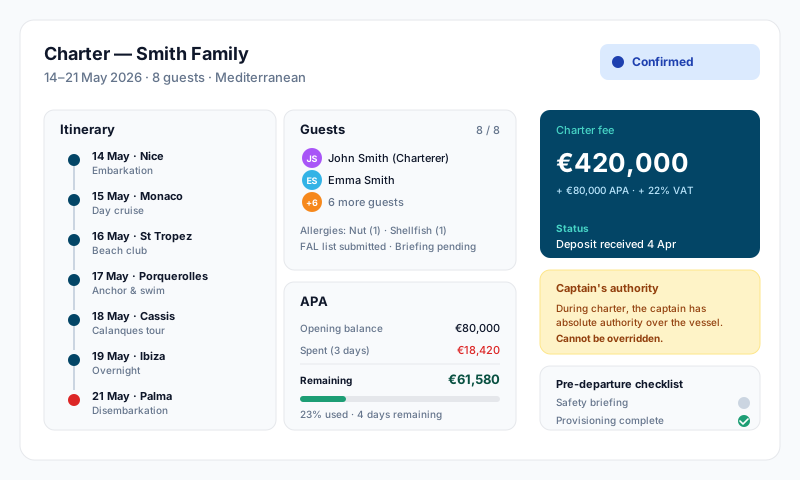
A charter in Sealogical spans three related modules:
- •Charter — the booking record itself (dates, broker, status, financials, notes, documents)
- •Guest — the guest list, separate from charters; guests are then assigned to a charter
- •Finance → APA — the Advance Provisioning Allowance account, optionally linked to a charter, with full expense / deposit / adjustment / fuel / statement tracking
Creating a Charter Booking
- •Go to Charter from the dashboard
- •Click Add Charter
- •Fill in the details across four sections:
Basic Information
- •Charter type — Charter or Trip
- •Charter status — Draft, Live, Completed, On Hold, Cancelled
- •Start and finish dates
- •Booking company and booking broker
- •Client status — Confirmed, Provisional, Cancelled
- •Owner status — Approved, Pending, Declined
Details & Logistics
- •Cruising area — chosen from 38 standard regions (e.g. W. Med - French Riviera, Caribbean - Leeward, Bahamas, S-E Asia)
- •Pickup port and drop-off port
- •Vessel entry (regulatory entry status), slip number
- •Type of guests — Corporate, Couples, Family, Group, or Other
Financial
- •Rate, commission, net to owner
- •Currency — USD, EUR, or GBP
Additional
- •Owner's charter flag (vessel used by owner rather than a paying client)
- •Previous charter reference, reference notes, notes, marina contact
Save the charter and you can then add guests, attach documents, and link an APA account.
Charter Documents
Each charter has a documents section with predefined slots for:
- •MYBA Agreement
- •Guest List
- •Itinerary
- •Guest Preference Sheets
- •Guest Feedback Sheets
- •Copy of APA Report
- •Addendum 1, Addendum 2
Upload PDFs or images to any slot from the charter detail page. (The itinerary lives as an attached document on the charter, not as a structured field.)
Guests
Guests are managed in the Guest module — open a vessel, then click Guest in the navigation. Add a guest with:
- •Full name, company, purpose of visit
- •Arrival and departure dates
- •Status — Expected, Onboard, or Departed
- •Nationality, ID type and passport / ID number (used for the FAL Form 6 passenger list)
- •Phone, email
- •Emergency contact name and phone
- •Cabin assignment
- •Notes (use this for dietary requirements, allergies, special preferences, or medical notes — the guest record has a single free-text notes field)
Guests with more than one passport. Add the guest once. On their profile, Passports & ID lists every passport or ID they hold — use Add document for each one (nationality, number, issuing country, expiry). The one marked Default is shown on the guest list and charter screens; Make default changes it. If a dual national was entered twice in the past, open either record: a banner lists the other one, and Merge into this guest moves its passports, charters, uploaded files and safety briefing onto one profile.
Once guests exist, open the charter and use Add Guests (the Charter Guest Picker) to assign them to that charter. The same guest can be assigned to multiple charters across the vessel's history.
Export FAL Form 6 on the Guest List produces the IMO passenger list. Guests whose status is Onboard are ticked by default; untick anyone who should not appear, or tick others to add them (Onboard + expected ticks arriving guests too, and the search box finds anyone by name, nationality or passport number). For a guest with more than one passport, click the passport they are travelling on — its number, nationality, issuing country and expiry go on the list together. A guest missing a passport, nationality or date of birth, or whose passport has expired by the voyage date, is flagged in amber before you export. Departed guests are folded away at the bottom of the list, with a link to show them. A guest entered twice (once per passport) is only ever ticked once, and the Compliance Pack passenger list likewise prints each person once. Set each guest's status to Departed when they leave so the next export is right without editing the list.
APA (Advance Provisioning Allowance)
APA is a separate module under Finance — Finance → APA — not inside the charter itself. To set up an APA for a charter:
- •Open Finance → APA and click + New APA Account
- •Optionally link it to a charter (start/end dates and APA name pre-fill from the charter)
- •Set the APA number (auto-generated), currency, initial deposit, and fuel start level/unit
- •Add the primary guest's name and email if applicable
- •Activate the APA when the charter starts
Once active, the APA detail view has seven tabs:
- •Overview — running balance, totals, key dates
- •Expenses — log and categorise expenses against the APA, with receipts and signed-off-by tracking
- •Deposits — record deposits paid in by the client/broker
- •Adjustments — corrections, refunds, manual entries
- •Fuel — fuel start/end levels, top-up purchases, and variance reconciliation
- •Statements — generate the formal client APA statement at charter end
- •Communications — record correspondence about APA matters
Tips
- •Move charters from Draft to Live once confirmed by client and owner — the dashboard lists active charters separately
- •Capture guest passports and nationalities as soon as you have them — FAL and Schengen counts depend on them
- •Log APA expenses daily — batching at the end of a charter creates errors and disputes
- •Generate the APA Statement before disembarkation so the client signs off on the spot
- •Use the documents section to keep the MYBA agreement, guest list, and APA report together for the audit trail
- •The captain has absolute authority over the vessel during charter — this cannot be overridden by the charterer or owner