Crew profiles store documents and certificates across two separate tabs:
- •Documents — travel documents and personal records (passport, visas, CV, NOK details, etc.). Employment paperwork — contracts/SEAs, addenda, NDAs — lives on the Employment tab under Documents, not here.
- •Qualifications — STCW certificates, medical certificates (ENG1), Certificates of Competency, flag endorsements, and similar professional qualifications
The two tabs work differently: the Documents tab is a fixed grid of pre-defined document types (click any card to upload that type), while the Qualifications tab is a free-form list — click Add Qualification and choose from a dictionary of qualification types, or add a custom one.
Documents Tab
The Documents tab shows a grid of cards organised into three categories. Click any empty card to upload a file of that type, or click an existing card to view, edit, or replace.
Core Personal Documents
- •Passport
- •CV / Resume
- •Next of Kin
- •Discharge Book
- •Seaman's ID
Travel & Work Authorisation
- •US C1/D Visa
- •US B1/B2 Visa
- •Schengen Visa
- •Other Visa
- •Sea Service Letter
Health & Additional
- •Driving License
- •Captain's Letter of Authority
- •Health Declaration
- •Onboard Familiarisation
Qualifications Tab
For STCW, medical, and competency certificates, use the Qualifications tab and click Add Qualification. The system recognises common types automatically and groups them into reporting categories:
- •Medical Certificates — ENG1, medical fitness, equivalent
- •Certificates of Competency (CoC) — Yacht Master, Chief Officer, Chief Engineer, OOW, etc.
- •Deck & Engineering Certificates — flag endorsements, ECDIS, etc.
- •Navigation & Safety Certificates — radar, ARPA, NAEST, ship security officer
- •STCW VI Basic Training — VI/1.1 to VI/1.8 (PST, FPFF, EFA, PSSR, combined courses)
- •STCW VI Survival Craft — VI/2.1, VI/2.2 (PSCRB, updated proficiency)
- •STCW VI Advanced Training — VI/3.1, VI/3.2 (advanced fire-fighting)
- •STCW VI Medical Training — VI/4.1, VI/4.2 (medical first aid, medical care)
- •STCW VI Security — VI/6.1 (security awareness), VI/6.2 (designated security duties), SSO
- •STCW V Passenger Safety — Crowd & Crisis Management, Updated Proficiency
Each qualification can also have a separate verification document uploaded alongside the certificate itself (e.g. flag state validation letter).
AI Document Scanning
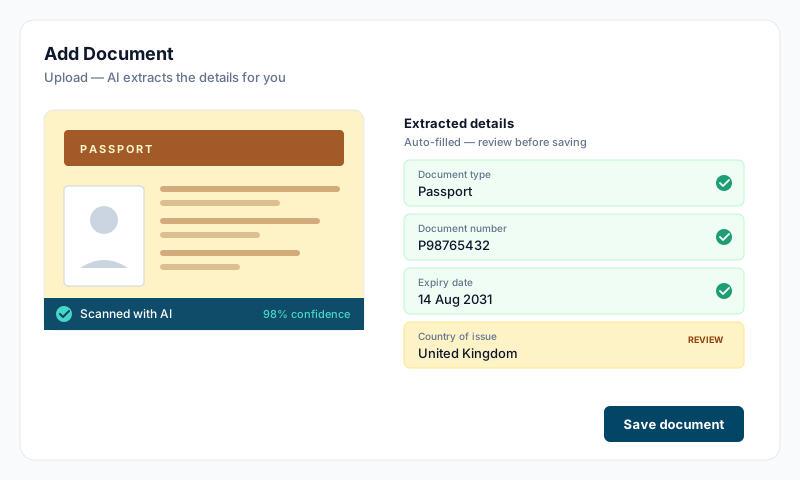
For most travel documents — passport, visas, certificates — the upload dialog offers Scan with AI. After choosing a file (JPEG, PNG, or PDF), click the button and the system reads the document and auto-fills:
- •Document number
- •Issuing country
- •Issuing office / authority
- •Issue date
- •Expiry date
The AI returns a confidence rating (high / medium / low). Always review the extracted fields before saving — particularly for low-confidence results or when warnings are shown. The original file is uploaded once you save the dialog.
Dates are checked against the document. For PDFs that carry a text layer — most certificates issued by training centres and flag administrations — the system asks the AI to quote the exact wording it read each date from, then checks that wording really appears in the file. If the document does not back the date up, the field is left blank rather than filled with a guess, and a warning says so. A blank expiry is deliberate: it gets chased, whereas a plausible wrong date reads as compliant and nobody looks again. Scans and photos have no text layer to check against, so those fall back to the confidence rating.
Importing a Folder of Documents
If a crew member joins with a folder of scans, account owners and administrators can click Import Documents at the top of the profile instead of uploading card by card. Select the folder, the AI scans every file at once, and you review and correct the whole batch before anything is saved — files are filed to the Documents and Qualifications tabs automatically. Existing documents are never overwritten. See the Using the AI Tools guide for the full walkthrough.
Expiry Tracking
Sealogical automatically tracks expiry dates and shows a status indicator on every document and qualification:
- •Green (Valid) — current and outside the warning threshold
- •Yellow (Expiring) — within the warning threshold
- •Red (Expired) — past the expiry date
- •Grey (Missing) — required document not yet uploaded (Documents tab cards only)
The warning threshold is 90 days for most documents and qualifications, but 9 months (270 days) for passports — passports show as expiring much earlier because most flag states refuse entry within 6 months of expiry.
Expiring documents and qualifications appear as alerts on the dashboard, in the weekly digest email, and in the Crew Documents report under Reports.
Tips
- •Always upload the actual document file rather than just the details — auditors and PSC inspectors will ask for the file
- •For passports, set the expiry well in advance — most flag states refuse to issue endorsements on passports with less than 6 months validity
- •Use AI scan for passports and visas — it's quicker and avoids data-entry errors. Always review the extracted fields before saving. The Using the AI Tools guide covers how to get the best results from a scan
- •Mark qualifications as verified once you've sighted the original or received a validation from the issuing authority
- •Documents and qualifications uploaded here populate FAL crew lists, the Crew Documents report, and the onboarding progress card automatically