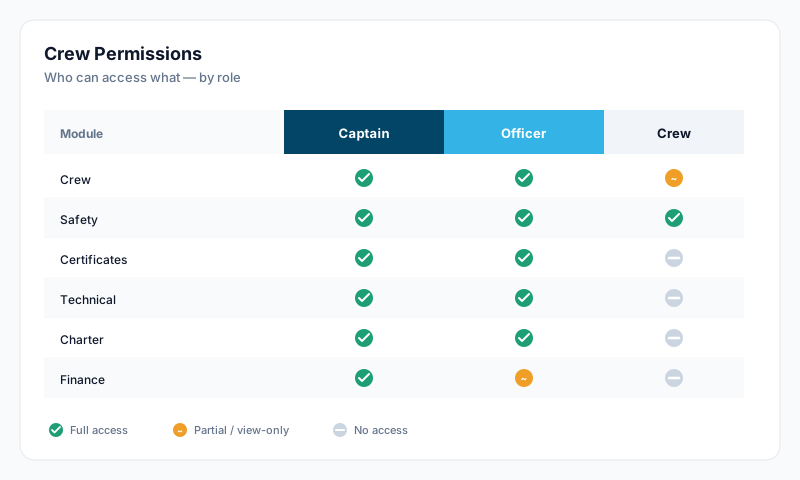
Where to Find It
Crew permissions are managed centrally, not from individual crew profiles:
- •Open Settings (cog icon in the header)
- •Go to Users & Access
- •Select the Vessel Crew tab
- •Pick the vessel, then click a crew member to edit their permissions
Only Account Owners, Account Admins, and Sealogical Administrators (Superadmins) can change permissions. A captain does not automatically have permission to manage other crew permissions unless they also hold one of these roles.
How Permissions Work
Each crew member has a permission profile that controls three independent things:
- •Crew Module Access — a preset that bundles all the crew-related flags (view profiles, edit profiles, view manning, view medical, approve leave, conduct appraisals, etc.)
- •Other Module Access — an access level (No Access / Read Only / Read & Write) for each of the six other modules: Safety, Certificates, Technical, Vessel, Charter, Finance
- •Approval and view flags (when on the Custom preset) — individual booleans for sensitive permissions and approvals
Crew Module Presets
There are four Crew Module Access presets:
- •View Only — can see the crew list only. No view of profiles, no edits, no approvals.
- •Head of Department — manage crew, approve leave and hours of rest, conduct appraisals. View profiles, edit profiles, view manning. Cannot view employment or medical records.
- •Full Access — everything Head of Department has, plus view and edit medical, access employment records, and all approval rights.
- •Custom — configure each individual flag manually (see below).
Module Access Levels
For each of the other six modules, choose one of:
- •No Access — module is hidden from navigation and search
- •Read Only — can view but not change anything in the module
- •Read & Write — can view and modify
Custom Permissions (Individual Flags)
Switching to the Custom preset reveals 17 individual permission flags, grouped into View Permissions, Approval Permissions, Appraisals and Crew Training.
View Permissions
- •Can see crew list
- •Can view crew profiles
- •Can edit crew profiles (requires Can view crew profiles)
- •Can view scheduling dashboard
- •Can access leave records
- •Can view medical information (sensitive)
- •Can edit medical information (sensitive — requires Can view medical information)
- •Can access employment records (sensitive)
Approval Permissions
- •Can approve leave requests (requires Can access leave records)
- •Can approve hours of rest submissions
- •Can approve payroll runs (requires Payroll = Read & Write)
- •Can approve expenses (requires Finance = Read & Write)
- •Can mark expenses paid (requires Finance = Read & Write)
- •Can approve invoices (requires Finance = Read & Write)
- •Can record invoice payments (requires Finance = Read & Write)
Permissions cascade — if you turn off a parent permission, dependent permissions are turned off automatically.
Appraisals
- •Can view appraisals
- •Can conduct appraisals (requires Can view appraisals)
Appraisal Department Scope
When Can view appraisals is enabled, an Appraisal Department Scope section appears beneath it. Tick the departments this user can see and conduct appraisals for (AVIT, Bridge, Deck, Engineering, Galley, Interior, Security, Other). The same scope governs both: a user scoped to Deck can neither read nor conduct an Interior appraisal. What leaving all unticked means depends on the tier: for a Head of Department it means their own department only (taken from their crew profile, so it follows a department change automatically); for Full Access and Custom it means all departments on the vessel. Ticking departments always overrides the default.
On top of the scope, a crew member never sees or conducts the appraisal of anyone holding the same position as them on that vessel — one Chief Engineer cannot read another Chief Engineer's appraisal. Their own appraisal is unaffected. Account owners, account admins and Sealogical Administrators are not limited by either rule.
Important Notes
- •A crew member with No Access to a module won't see it in their navigation, search results, or Sealogical Intel results
- •Changes save immediately when you click Save Changes — they take effect on the user's next page load
- •The "Set all to" shortcut applies one access level (No Access / Read Only / Read & Write) across every module at once
- •Bulk apply lets you push the same Crew preset or module access level to multiple crew members in one action
- •Self-approval is blocked across the platform — a user cannot approve their own payroll submission or appraisal, even with Full Access. Leave is the one exception: Full Access crew (and account owners / Sealogical Administrators) may approve their own leave request, because on a small vessel they are often the only approver on board. The approval is still recorded in the audit trail with their name and timestamp
Captain Protection (independent of permissions)
Even with Full Access or the Can access employment records flag turned on, a user holding the Captain or 2nd Captain position is blocked from viewing another Captain / 2nd Captain's Employment data on the same vessel — payslips, banking, leave history, contract details, and SEA agreement. This rule is independent of the permission flags above: it always applies, and it is enforced server-side at every gate so direct URLs and API calls are refused, not just the UI.
There is one nuance worth knowing: Captain Protection lives in the Employment module. If you grant a captain Finance Read or Read & Write, they will see every crew member's payroll inside the Payroll module — including other captains' — because that module reads its own permission, not the Employment one. The recommended setup is to not grant captains Finance access unless that captain is explicitly intended to act as bookkeeper on a small vessel. Account Owners always bypass Captain Protection (it's intended for peer-to-peer captains, not for owners).