A Seafarer Employment Agreement (SEA) is the formal employment contract document required by the Maritime Labour Convention (MLC 2006, Standard A2.1). Sealogical generates SEAs pre-populated from the crew member's profile, vessel details, and employment contract, then guides you through finalisation and digital signing.
What's in an SEA?
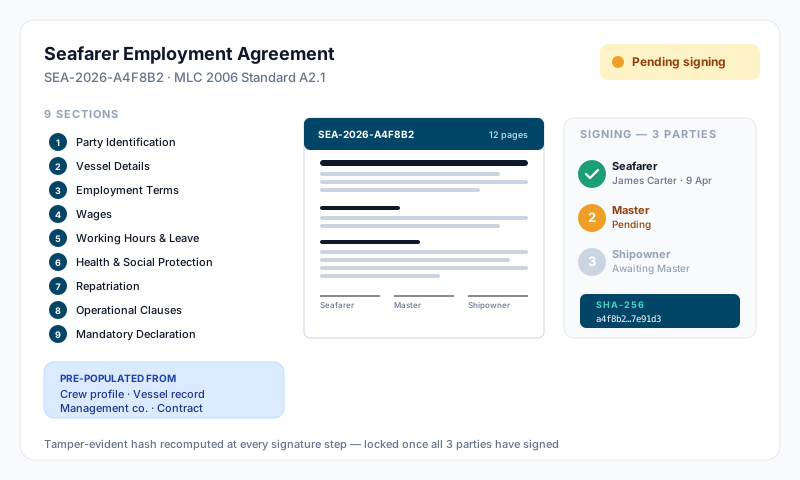
The agreement is structured into 9 sections:
- •Party Identification — seafarer details (name, DOB, nationality) and shipowner/employer details
- •Vessel Details — vessel name, port of registry, gross tonnage, IMO number, flag state, voyage description
- •Employment Terms — position, department, contract type (Definite / Indefinite / Voyage), termination terms (notice period, expiry date, or destination port + days after arrival)
- •Wages — base salary, currency, frequency, overtime rate, payment method, allotment arrangements
- •Working Hours & Leave — daily/weekly hours, rest hours (STCW compliant), annual leave, maximum service period (must be less than 12 months per MLC)
- •Health & Social Protection — medical treatment, sick pay, disability and death compensation, insurance, onboard medical care
- •Repatriation — entitlement, transport mode, destination, reimbursement conditions
- •Operational Clauses — collective bargaining agreement, disciplinary procedures, complaint procedures, governing law
- •Mandatory Declaration — additional declaration block required for UK-flagged vessels (MCA MGN 477)
Creating an SEA
- •Open the crew member's profile → Employment → Employment Agreement tab
- •Click New Agreement
- •The system pre-populates data from:
- •The crew member's profile (name, DOB, nationality, mother tongue)
- •The vessel record (name, flag, tonnage, IMO number)
- •The management company (shipowner name and address)
- •The employment contract (position, salary, contract type)
- •Vessel defaults (health, repatriation, and operational clause templates)
- •Review and complete any remaining fields manually (e.g., place of agreement, voyage description)
- •Click Save
The SEA is created in Draft status with a unique reference number formatted as SEA-{fleet}-{timestamp} (e.g., SEA-ABCD-MZ2X5K).
Editing a Draft
While in Draft status, you can edit any field across all 9 sections. Auto-populated fields are shown read-only with an "Auto-populated from..." note; manual fields are editable.
Finalising the Agreement
Before signatures can be collected, the SEA must be finalised:
- •Open the draft SEA
- •Review all sections — section badges show whether each section is complete
- •Click Finalise
- •The system validates that all required fields are complete — if anything is missing, you'll see which fields need attention
- •Once finalised, the content is locked and the agreement moves to status Finalised ready for signatures
Signing the Agreement
After finalisation, signatures are collected digitally. There are five signature slots in total:
| Signature | Who signs | Required? |
|---|---|---|
| Seafarer | The crew member | Yes |
| Employer | The employer representative | Yes |
| Shipowner | The shipowner representative | Yes |
| Declaration — Seafarer | Crew member (UK MGN 477) | UK-flagged vessels only |
| Declaration — Shipowner | Shipowner (UK MGN 477) | UK-flagged vessels only |
Crew members can sign both seafarer slots themselves (sig_seafarer and sig_declaration_seafarer). All other signatures require employment write access.
Each signature is recorded with:
- •The signer's name, title, and company
- •A digital signature image (drawn on screen)
- •A server-generated timestamp
- •An integrity hash — SHA-256 of
signer_name | sea_id | signed_at | content_hash - •A content hash — SHA-256 of the full
sea_dataat sign time, so any subsequent edit can be detected
Reopening a Signed Agreement
If a signed agreement needs correction (e.g., a typo in the contract terms or a wrong date), an administrator can reopen it:
- •Open the signed SEA
- •Click Reopen (visible only to Account Owners and Sealogical Administrators)
- •Confirm — the action wipes all five signature slots, clears the finalised metadata, and returns the agreement to Draft status
- •Make the corrections, then re-finalise and re-collect signatures
Only signed agreements can be reopened — drafts and finalised-but-unsigned agreements are edited in place.
Statuses
| Status | Meaning |
|---|---|
| Draft | Being prepared, content editable |
| Finalised | Content locked, ready for signatures |
| Pending Signatures | Some signatures collected, waiting for the rest |
| Signed | All required signatures obtained |
| Cancelled | Agreement voided or superseded |
PDF Download
The agreement can be downloaded as a PDF from any status using the Download PDF button on the SEA page. Once all signatures are collected, the PDF includes the signature images and serves as the crew member's official employment agreement.
Multi-Language
If the crew member's mother tongue is recorded as something other than English, the system stores a translation_required flag on the agreement. Plan separately for any translation work needed before the seafarer signs — currently the SEA template itself is in English, so a separate translated copy may be required for non-English speakers.
Permissions
- •Creating, editing, finalising, and signing employer/shipowner slots requires the "Can Access Employment" permission, or Account Owner / Sealogical Administrator access
- •Crew members can view their own SEAs and sign their own seafarer signature slots (both regular and declaration)
- •Reopening a signed agreement is restricted to Account Owner or Sealogical Administrator only
Captain Protection
A user holding the Captain or 2nd Captain position cannot view, create, edit, finalise, sign on the employer/shipowner side, or delete the SEA of another Captain / 2nd Captain on the same vessel — the SEA contains compensation terms, so it falls under the same compensation-protection rule that gates payslips and banking. The block is enforced at every SEA server action (read + write), so direct URL access and API calls are both refused. Account Owners and Sealogical Administrators bypass; a captain can always see and sign their own SEA.
Tips
- •Generate the SEA after the employment contract details (salary, dates, position) are finalised — it pulls data directly from the contract
- •Review vessel defaults for health, repatriation, and operational clauses in vessel settings — these pre-populate sections 6, 7, and 8
- •For UK-flagged vessels, the Mandatory Declaration section appears automatically — don't skip it
- •The maximum service period must be less than 12 months (MLC requirement)
- •Keep the SEA signed before the crew member starts work — it's a PSC inspection item
- •If you need to correct a signed agreement, use Reopen — it preserves the agreement record (no duplicate) but invalidates all signatures so they must be collected again