Every crew member on a vessel has an employment contract that records their position, department, dates, compensation, and tax configuration. Only one contract can be active at a time per crew member on a given vessel.
Accessing Employment Contracts
- •Go to Crew and open a crew member's profile
- •Click the Employment tab
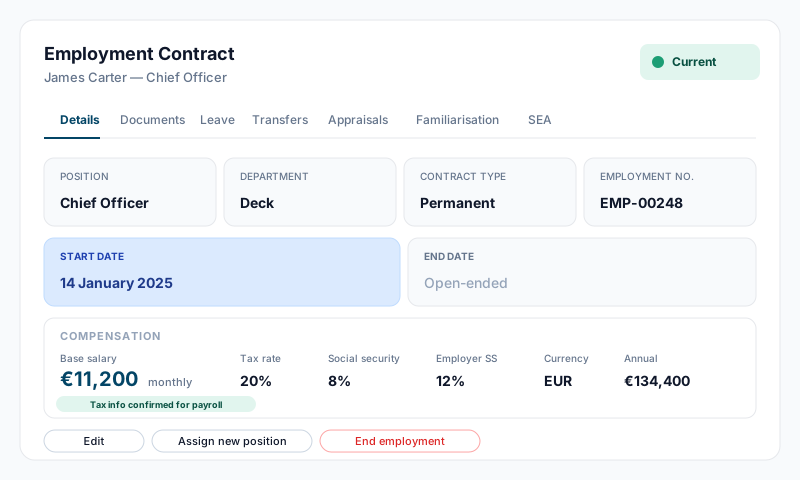
You'll see the current contract (if active) with a green "Current" badge, and an option to expand past contracts below.
Contract Sub-Tabs
Each contract has these tabs (the last two appear only on the current contract):
- •Details — position, department, dates, compensation, tax info, notes
- •Employment Documents — contract documents and certifications
- •Leave — leave accrual, balance, and requests
- •Transfers — vessel transfer permissions and history
- •Appraisals — performance reviews
- •Familiarisation — onboarding checklists
- •Banking — bank account details for payroll. Visible only when you hold both Can Access Employment and Finance Read permissions on the vessel — typical for HR + payroll staff. Captains and other crew without payroll access don't see this tab.
- •Payslips — flat list of every paid payslip for this crew member, View / Download per row. Generation happens automatically when a payroll period is approved; see the Running Payroll guide for the full lifecycle.
- •Employment Agreement — Seafarer Employment Agreement (SEA) documents
Creating a New Contract
The Add Contract button appears on the Employment tab only when the crew member has no active contract — typically after a contract is ended or for a new crew member without a starting contract.
To rehire someone whose contract has ended:
- •On the Employment tab, click Add Contract
- •Fill in the required fields:
- •Position — select from the list of yacht positions
- •Start Date — defaults to today
- •Optionally fill in:
- •Review Date — for the next probation / appraisal touchpoint
- •Department — Bridge, Deck, Interior, Engineering, or Galley
- •Contract Type — Permanent, Seasonal, Rotational, Temporary, or Daywork
- •Work Email and Work Phone
- •Base Salary, Currency (USD, EUR, GBP, AUD, CAD, CHF, SEK, NOK, DKK), and Frequency (Monthly, Annual, Daily)
- •Leave Allowance (at the bottom of the modal) — choose MLC Minimum (30 days/year), Fixed entitlement with your own day count, Rotational pattern with work/leave day cycles, or No accrual for Daywork-style arrangements. The setting controls how this contract accrues annual leave from day one.
- •Click Create Contract
If you do create a new contract and there is somehow already an active one (e.g. via direct API), the existing active contract is automatically ended to maintain the one-active-contract rule. The crew member's profile status is set to "active" and their position is updated.
Editing a Contract
- •Click Edit on the contract card
- •You can update:
- •Position and department
- •Start date, scheduled end date, and review date
- •Contract type and employment number
- •Work contact details
- •Salary, currency, frequency, and signing bonus
- •Tax configuration (country, year, income tax rate, social security rate, employer contribution rate, tax-free allowance)
- •Leave Allowance — switch between MLC Minimum, Fixed entitlement, Rotational pattern, or No accrual at any time. Changes apply forward; existing accrued balance is not retroactively recalculated
- •Notes
The system enforces "one active contract" but does not validate full date-range overlaps — be careful when editing dates that you don't create overlapping employment periods on the same vessel.
If the contract has already been used in a paid payroll period, the salary on file remains in the historical entries (banking and position were snapshotted at approval). Edits here change future payroll calculations only.
Assigning a New Position (Promotion / Role Change)
If a crew member changes role but stays on the same vessel:
- •Click the three-dot menu (⋯) on the current contract
- •Select Assign New Position
- •Enter:
- •New Position — search or type a position name (cannot be the same as current)
- •Current Contract End Date — defaults to today
- •New Contract Start Date — defaults to the day after the end date (must be on or after the end date)
- •Department — optionally change department
- •Leave Allowance — choose the new contract's accrual rule. Defaults to the same setting as the contract being closed; change here if the promotion comes with a new leave package.
- •Notes — reason for the change (optional)
- •Click Save
This ends the current contract (status: completed) and creates a new one. All compensation, rotation, and tax settings are carried forward automatically. The reason for leaving on the old contract is set to "Position changed to [new position]".
Ending Employment
Click the red End Employment button on the current contract card (it sits next to the three-dot menu — the dropdown contains Generate Employment Agreement and Assign New Position, not End Employment). The dialog requires you to:
- •Set the End Date (defaults to today)
- •Optionally enter a Reason for Leaving
- •Tick the "I confirm this employment end has been authorised" checkbox (mandatory)
The contract status changes to "completed" and the crew member moves to employment history. If they have no other active contracts, their profile status changes to "contract_ended" and they no longer appear in the active crew list. See Ending Employment in the help guides for the full flow.
Contract Types
| Type | Description |
|---|---|
| Permanent | Ongoing employment with no defined end date |
| Seasonal | Recurring seasonal contract (e.g., summer charter season) |
| Rotational | Contract with a work/leave rotation pattern (e.g., 6 weeks on, 6 weeks off) |
| Temporary | Fixed-term contract |
| Daywork | Daily work arrangement |
Permissions
To view employment contracts, you need one of:
- •Account Owner or Sealogical Administrator access
- •Your own profile (crew can always view their own employment records)
- •The "Can Access Employment" permission on this vessel
When access is denied, the Employment tab renders an Access Denied card rather than a 404, and direct links to /employment or /sea redirect to the gated profile page.
Captain Protection
A user holding the Captain or 2nd Captain position cannot view another Captain / 2nd Captain's Employment section on the same vessel — even if they otherwise hold Can Access Employment. This protects salary, banking, leave history, payslips, and SEA agreements between peers. Account Owners and Sealogical Administrators bypass the rule, and any user can always see their own profile.
The block is enforced at every server gate that ships compensation data:
- •The crew profile route and the dedicated
/employmentroute - •The standalone SEA detail page
- •
listCrewPayslips,getCrewMemberComplete(employment fields are stripped server-side), and the SEA view / write actions - •Finance → Payroll. Payroll is granted by the Finance permission, not by Can Access Employment, so the rule is applied separately there: a protected peer's entry is hidden from the payroll period, their salary configuration and payslips cannot be opened, and the payroll CSV and bank-file exports are refused outright (a Captain running payroll gets a message asking an Account Owner to generate them). Exports are refused rather than silently filtered — a payroll file that quietly omits a crew member would be reconciled against as if it were complete.
Note: the rule covers the Captain and 2nd Captain positions only. Relief Captain, Co-Captain and Tender Captain are separate positions and are not protected.
So the protection holds whether the captain navigates via the UI, types the URL directly, or inspects the page response — the data is never shipped, not just hidden.
There's one nuance: Captain Protection lives in the Employment module. A captain who is also granted Finance access (uncommon — most operators don't grant captains Finance access) will see other captains' payroll inside the Payroll dashboard. See the Running Payroll guide for details.
Tips
- •Only one contract can be active at a time on a vessel — the Add Contract button only appears after the current contract is ended.
- •Use Assign New Position for promotions rather than manually ending and creating contracts — it preserves salary and tax settings automatically and lets you adjust the leave allowance in the same step.
- •The employment number field is useful for linking to your external payroll system.
- •Past contracts are collapsed by default — click Past Contracts (N) to expand them.
- •Tax configuration is used by the payroll module to calculate deductions; the Leave Allowance setting controls how the contract accrues annual leave.
- •Once a payroll period is paid, banking and position are snapshotted onto each entry — later edits to the contract change future payroll only, not history.
- •If a crew member moves between vessels in the same fleet, use Transfers — a controlled, compliance-checked move where their employment continues on the receiving vessel (nothing is re-signed; salary, tax, rotation and leave settings carry over). It is not the same as ending employment.