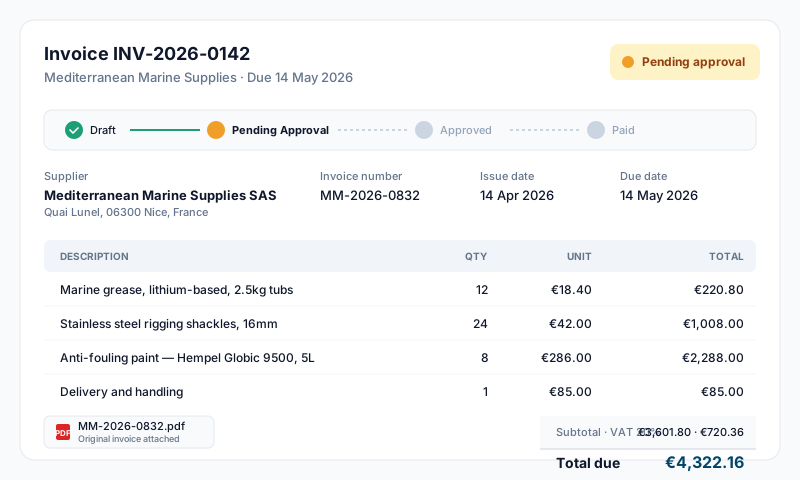
Creating an Invoice
- •Go to Finance → Invoices
- •Click New Invoice
- •The fastest path is Scan with AI — drop a PDF, JPEG, PNG, WebP, or HEIC file (up to 10 MB) onto the AI scan card and the system will:
- •Match or suggest the supplier from your supplier list
- •Match an existing Purchase Order if the invoice references one
- •Extract invoice number, issue date, due date, currency, line items, and tax
- •Show a High / Medium / Low confidence rating per field — review carefully where confidence is lower
- •Or fill in manually:
- •Supplier — pick from your saved suppliers (managed centrally; create new ones from Finance → Suppliers)
- •Invoice number (from the supplier's document)
- •Issue date and due date
- •Currency — EUR, USD, or GBP
- •Category — Fuel, Provisions, Maintenance, Crew Costs, Equipment, Supplies, or Other
- •Add line items — description, quantity, unit (piece / liter / hour / day / kg / meter / box / set), unit price, tax rate
- •Attach the original supplier invoice file (and any supporting docs)
- •Click Save as Draft or Submit for Approval
Creating an Invoice from a Purchase Order
If a Purchase Order already exists:
- •Open the PO and click Create Invoice, or go to Invoices → New Invoice from PO
- •The supplier and line items are pre-populated from the PO
- •Verify amounts match the supplier's invoice
- •Attach the supplier's document and submit
Statuses
Invoices follow this lifecycle:
- •Draft — being prepared, not yet submitted
- •Pending Approval — submitted and awaiting review
- •Approved — authorised for payment
- •Partially Paid — at least one payment recorded but balance remains
- •Paid — fully paid
- •Rejected — returned with notes for correction
- •Voided — cancelled by a full credit note
Overdue is not a stored status — it's a derived flag on Approved or Partially Paid invoices whose due date has passed. Filters and dashboards show overdue items separately.
Disputes are tracked on a separate axis — an invoice can be Paid AND Disputed at the same time. Dispute states: None / Disputed / Under Review / Resolved.
Approval
Anyone with the Can approve invoices permission flag can approve, but self-approval is blocked — the user who submitted the invoice cannot approve it themselves. The same rule applies to rejection. This separation of duties is built into the server action and cannot be bypassed.
Rejected invoices can be edited and re-submitted. A small notes field lets the approver explain rejections so the submitter knows what to fix.
Recording Payments
- •Open the approved invoice
- •Click Record Payment
- •Enter payment date, amount, method, and reference
- •Partial payments are supported — the invoice moves to Partially Paid and the balance updates automatically
- •Once the full balance is paid, the invoice transitions to Paid
Disputes
If the supplier's invoice contains an error or you have a query:
- •Open the invoice and click Raise Dispute
- •Add notes describing the dispute
- •The invoice shows a dispute banner; payments and approvals can still proceed in parallel
- •Resolve the dispute when settled — set it back to Resolved or None
Credit Notes
If the supplier issues a credit note (full or partial refund):
- •Open the invoice and click Create Credit Note
- •Enter the credit note details and the lines being credited
- •A full credit note transitions the original invoice to Voided; partial credits adjust the outstanding balance
Tips
- •Always attach the original supplier invoice file — it is required for audit and tax purposes
- •Use the AI scan for new invoices — it's much faster than typing and the supplier/PO matching catches duplicates. The Using the AI Tools guide covers the scan in detail
- •Maintain your supplier list — accurate supplier records make AI matching work better and feed Purchase Orders too
- •Use Purchase Orders for planned spending — invoices linked to a PO are quicker to approve and easier to reconcile
- •Review confidence ratings on AI-extracted fields before submitting — particularly the totals and tax
- •Filter the invoice list by status to focus on what needs action — Pending Approval, Overdue, or Disputed presets are most useful
- •Export the invoice list (CSV/PDF) for your accountant