Sealogical provides a complete leave management system covering leave requests, approvals, balance tracking, and MLC compliance. This guide covers the full workflow from requesting leave to configuring accrual rates.
Leave Types
Eight leave types are available on every vessel:
- •Annual Leave — standard vacation leave, deducted from your balance
- •Rotation — rotational time off, deducted from your balance
- •Sick Leave — not deducted from your balance
- •Emergency Leave — not deducted from your balance
- •Training — not deducted from your balance
- •Parental Leave — not deducted from your balance
- •Compassionate Leave — not deducted from your balance
- •Unpaid Leave — not deducted from your balance, and no leave accrues while you are on it
Travel days don't accrue either
Travel days are marked inside a leave's dates and are not a leave type of
their own. By default they don't come off your balance — and no leave accrues
on them either, because they're time away from the vessel rather than time
worked. That applies whichever leave type they sit inside.
If your fleet has travel days set to count against the balance, they are
deducted once and still don't accrue; they are never charged twice.
Unpaid leave pauses accrual
Every other leave type is paid time away, so your entitlement keeps building
exactly as if you were aboard. Unpaid leave is the exception: your accrual
clock stops for each unpaid day and restarts when you return.
How much that costs depends on your contract. On a rotational contract of
1 day leave per 1 day worked, 10 unpaid days means 10 days of leave not
earned. On a fixed entitlement of 30 days a year, the same 10 days costs
about 0.8 of a day. Either way the unpaid days themselves are never taken off
your balance — they simply don't add to it.
The add-leave form shows this warning as soon as Unpaid Leave is selected.
Checking How a Balance Was Calculated
Under the balance on the crew profile's Leave tab there is a
How is this calculated? link. It opens the full working behind the figure:
- •Total employment days — days since the contract start date
- •Leave taken — annual and rotation leave to date
- •Non-accruing days — unpaid leave and travel days, where the accrual clock was paused
- •Net service days — the days that actually earned leave
- •Leave accrued — net service days × the contract's accrual rate
- •Manual adjustments — carried-over days and corrections
- •Current balance — the figure shown on the profile
The working differs by contract type. On a rotational contract leave is
earned only while working, so leave taken is subtracted from service days
before the ratio is applied. On a fixed entitlement contract leave accrues
on every employed day that isn't unpaid, and leave taken comes off the accrued
total at the end.
If more leave has been taken than accrued, the dialog says so and explains
that the balance is shown as 0 rather than as a negative number.
Requesting Leave (Crew)
How to Submit a Leave Request
- •Go to your crew profile (or have a manager open it)
- •Navigate to the Employment section
- •Click the Leave tab on your current contract
- •Click Request Leave
The Leave Request Form
Fill in the following:
Required fields:
- •Leave Type — all eight types are offered: Annual Leave, Sick Leave,
Emergency Leave, Unpaid Leave, Training, Parental Leave, Rotation, and
Compassionate Leave
- •Start Date and End Date
- •Leave Days to Deduct from Allowance — the number of days to count against your balance.
It is filled in for you from the dates and any travel days, and can be overridden. On a
leave type that doesn't draw the balance the field still records a figure for reports, and
the form says so underneath — nothing is deducted.
Optional fields:
- •Travel Days — click the days on the month grid to mark them as travel. They stay
inside the leave's dates; by default they don't come off your balance, and no leave
accrues on them either (see below). The Travel days count against leave balance
switch, off by default, is there for fleets that treat travel as leave.
- •Number of Flights — N/A, 1, 2, 3, or 4
- •Flight Type — N/A, One Way, or Return
- •Reason — why you need leave (max 500 characters)
- •Comments — any additional notes (max 500 characters)
- •Crew member remains on board — appears for Sick Leave only, and defaults on.
Sick but staying on the vessel still counts as on board (berth occupied) in crewing views.
- •End unknown — tick when the return date genuinely isn't known yet (a sick crew member
ashore, for example). The leave is saved with a provisional end that you replace later.
While it's ticked the end date and the travel-day grid are switched off.
As you fill in the form, the system shows:
- •Current balance — under the crew member's name, their balance before this request
- •Duration — total days between start and end date
- •Days Deducted — what will actually come off the balance ("None — doesn't affect balance" on a type that doesn't draw it)
- •Balance when leave starts — the balance on the day before the leave begins, including the leave earned between today and then (and less any other approved leave in between)
- •Balance after leave — that figure minus the days deducted (shown in red if insufficient)
Click Submit Request to send it for approval.
Overlapping Requests
The system prevents you from submitting a leave request that overlaps with an existing active request. If your dates overlap with a pending or approved request, you'll need to adjust your dates or cancel the existing request first.
Approving Leave (Managers)
Who Can Approve
You need the "Can Approve Leave" permission, or be an account owner or Sealogical Administrator.
Approving your own leave: crew on the Full Access preset (plus account owners and Sealogical Administrators) can approve their own leave request — on a small vessel they are often the only approver on board. Every approval is recorded in the audit trail with the approver's name and timestamp. Crew on the Head of Department preset, or a custom preset with "Can Approve Leave", still cannot approve their own request — a Full Access approver sits above them.
Where to Find Pending Requests
Go to Crew → Leave. The page has tabs across the top — Crew Status,
Leave Requests, Timeline and Monthly Calendar (shown as Manning
if you have manning access).
The Leave Requests tab is the vessel-wide list. Click any row to open the
request and approve, reject or cancel it. Requests can also be opened from the
Timeline and Monthly Calendar tabs, and from an individual crew
member's profile → Employment → Leave tab.
Above the tabs, a Pending Approvals card appears whenever there are
requests awaiting a decision, with a count badge and a table of Crew Member,
Type, Dates, Days, Balance Impact and Status. Clicking a row opens the same
detail view.
How to Approve or Reject
- •Click on a leave request row to open the detail view
- •Review the crew member's details, dates, balance impact, and reason
- •Optionally add notes
- •Click Approve or Reject
On approval:
- •The status changes to Approved
- •Leave days are deducted from the crew member's balance
- •The crew member receives a notification
On rejection:
- •You must provide a reason for the rejection (required)
- •The status changes to Rejected
- •No days are deducted from the balance
- •The crew member receives a notification with the rejection reason
Race Condition Protection
If two managers try to approve the same request simultaneously, only the first action goes through. The second manager will see that the request has already been processed.
Cancelling a Leave Request
Both crew members and managers can cancel leave requests.
Which Requests Can Be Cancelled
Requests that are still awaiting a decision (Pending) or have been
Approved can be cancelled. Requests already Rejected or Cancelled
cannot be.
Approval is not a deadline: an approved leave can be cancelled after its dates
have passed as well as before them, and the days are refunded either way.
How to Cancel
- •Open the leave request (from the Leave tab on the crew profile, or from the Leave Requests panel)
- •Click Cancel Request
- •Provide a reason for cancellation (required)
- •Confirm
Balance Refund
If an already-approved request is cancelled, the leave days are refunded back to the crew member's balance automatically.
Leave Balances
How Balances Are Calculated
Your leave balance is calculated in real time based on:
- •Accrual — days earned since your contract start date. Rotation contracts earn for each day worked (days on leave earn nothing); fixed-entitlement contracts earn evenly across every day employed. A contract with no entitlement set uses the MLC minimum of 30 days a year.
- •Taken — annual and rotation leave that has actually happened (a leave starting next month has taken nothing yet). Sick, training and other paid leave types are not deducted.
- •Adjustments — manual corrections recorded on the Leave tab.
Balance = Accrued days − Taken days + Adjustments
Requests still awaiting approval are not deducted. A request shows the balance on the day its leave starts, and what is left after it.
Viewing Your Balance
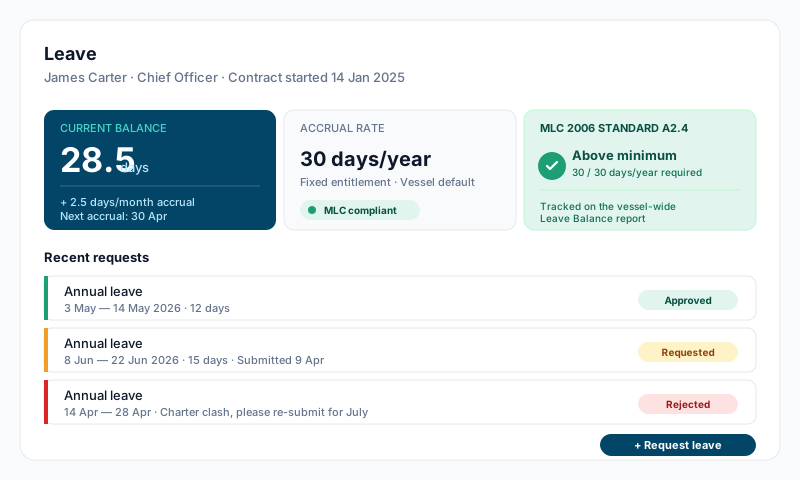
Go to your crew profile → Employment → Leave tab. The summary shows three metrics:
- •Balance — your remaining leave days (with a progress bar)
- •Pending — days in pending requests
- •Taken — days already used
Manual Balance Adjustments
Managers with the "Can Approve Leave" permission can manually adjust a crew member's leave balance:
- •Adjustments can be positive (adding days) or negative (deducting days)
- •A reason is required (max 500 characters)
- •Maximum adjustment: ±365 days
- •Every adjustment is recorded in an audit trail showing who made it, the previous balance, new balance, and reason
Seeing who adjusted a balance
The audit trail appears in two places, both showing the same entries:
- •Crew profile → Leave tab — open How is this calculated? under the
balance; the adjustment history sits under the figures it explains
- •Crew → Leave → Crew Status — expand the crew member's row
Each entry shows the date, the change, the reason, the balance before and
after, and the name of the person who made it.
An adjustment made by the crew member on their own balance is marked
"Adjusted own balance". This is permitted — a captain with leave-approval
rights may legitimately correct their own carried-over days — but it is the
one adjustment with no second pair of eyes, so it is always labelled. Leave
requests cannot be self-approved.
Accrual Configuration
Every crew contract has its own leave allowance. The default follows the contract type — Permanent and Temporary contracts default to 42 days/year, Rotational contracts default to a 1:1 ratio (equal rotation: the off-rotation period constitutes the paid leave, the standard senior-crew arrangement). The value can be set or changed at any of these points:
- •When you add a crew member (Add Crew form)
- •When you add a new contract to an existing crew member (Add Contract modal)
- •When you assign a new position (the position-change creates a new contract)
- •After the fact, by editing the contract (Edit Contract modal)
There are no fleet-wide accrual defaults to set or propagate — each contract is its own source of truth.
How Accrual Works
Leave accrual determines how many leave days a crew member earns over time. There are two methods:
Days per year:
- •A set number of days per year (e.g. 30, 36, 38, or any custom amount)
- •Accrued daily as annual days ÷ 365
Ratio:
- •Leave days earned per days worked (e.g. 1 day leave for every 1 day worked)
- •Used for rotational crew on a rotation pattern (1:1, 1:2, etc.)
Setting Leave Allowance
The same Leave Allowance section appears in all four places listed above. Wherever you find it:
- •Choose a Method:
- •Days per year — type the annual allowance (e.g. 30, 38, 44)
- •Ratio — type the leave-to-worked ratio (e.g. 1 : 1 for a captain on equal rotation, 1 : 2 for one day leave per two days worked)
- •Enter the value(s)
- •Save the form (the wording on the save button varies — Add Crew Member, Create Contract, Assign New Position, or Save Changes)
The system shows the equivalent days-per-month (or days-per-year for ratio mode) below the input. If the value falls below the MLC minimum of 30 days/year, an amber warning appears — you can still save, but the contract is flagged as non-compliant.
To change the leave allowance later, open the crew profile → Employment → click Edit on the relevant contract → adjust the Leave Allowance section → Save Changes.
MLC Compliance
The Maritime Labour Convention (MLC 2006) requires a minimum of 2.5 days of paid annual leave per month of service (30 days per year).
Sealogical checks MLC in two places:
- •On the contract — if you set an accrual rate below 30 days/year, an amber warning appears when you save it.
- •On the Leave tab and Leave status page — whether the crew member has actually taken leave recently: Compliant under 180 days since their last leave, At Risk from 180 days, Non-Compliant from 330 days (11 months).
Privately operated vessels are outside MLC 2006 and show no MLC warnings.
Leave Balance Report
A vessel-wide leave balance report is available at Reports → Leave Balance.
The report shows every crew member's leave balance and can be filtered by:
- •Date — snapshot date for balance calculation
- •Department — Deck, Engineering, Interior, Galley, Security, AVIT, Bridge, Other
- •Crew Member — select specific crew
The report can be sorted by name, rank, department, or balance, and exported as PDF or Excel.
Request Statuses
| Status | Meaning |
|---|---|
| Pending | Submitted, awaiting approval |
| Approved | Approved by manager — days deducted from balance |
| Rejected | Rejected by manager (with reason) |
| Cancelled | Cancelled by crew member or manager (with reason) |
A request only ever holds one of those four. Completed, In progress
and Upcoming are not statuses you can set — they are worked out from an
approved request's dates against today, which is why an approved leave that
has already happened is still shown as Approved and can still be cancelled.
Permissions
| Permission | What it allows |
|---|---|
| Can Access Leave Records | View crew leave balances and history |
| Can Approve Leave | Approve, reject, and cancel leave requests; make manual balance adjustments |
Crew members can always view and manage their own leave regardless of permissions.
Tips
- •Submit leave requests as early as possible — managers need time to plan crew cover
- •If your balance is insufficient, the form warns you but still allows submission — the manager decides whether to approve
- •Cancelled approved requests automatically refund leave days to your balance
- •New contracts default by contract type — Permanent/Temporary → 42 days/year, Rotational → 1:1 equal rotation. Adjust the Leave Allowance on the Edit Contract modal for any crew member on a different rate
- •Use manual balance adjustments sparingly and always provide a clear reason — every adjustment is logged
- •The leave balance report is useful before PSC inspections to verify MLC compliance across all crew