Sealogical tells you when something needs your attention — a drill falling due, a leave request waiting on your approval, a certificate about to expire, a form signed off. You decide which of those reach you, and whether they arrive in the app, by email, or both.
Where to find it
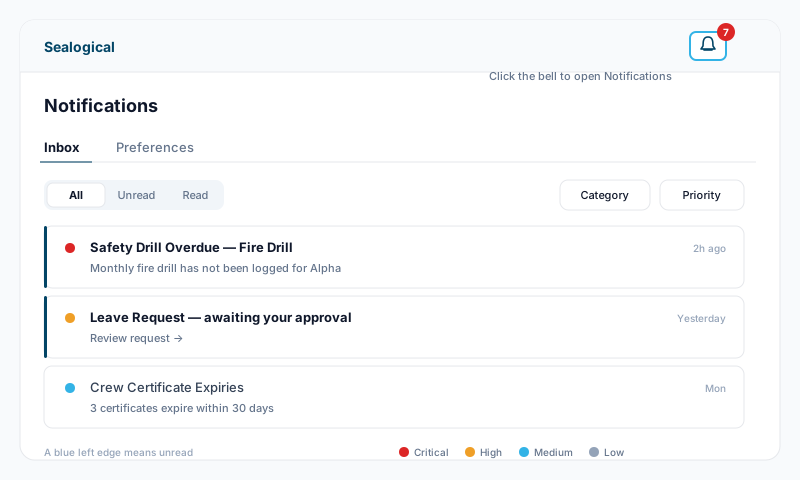
The bell icon sits in the top-right of the header on every screen. The red badge is your unread count (it stops at 99+). Click the bell to open Notifications, which has two tabs:
- •Inbox — everything you have been sent
- •Preferences — which notifications you want, and how they are delivered
Set up your preferences once, when you first get access. It takes two minutes and it is the difference between a useful inbox and one you stop reading.
The Inbox tab
Each row is one notification: a title, a short message, how long ago it arrived, and the module it came from. The coloured dot on the left is its priority, and an unread notification has a blue edge down its left-hand side.
| Dot | Priority | What it usually means |
|---|---|---|
| Red | Critical | Overdue or safety-critical — deal with it now |
| Orange | High | Needs action soon, or someone is waiting on you |
| Blue | Medium | Routine activity you should know about |
| Grey | Low | Informational |
Reading and clearing
- •Click a notification to jump straight to the record it is about. It is marked as read automatically.
- •Tick (✓) marks one as read without opening it. Hover over the row to see it.
- •X dismisses one — it disappears from your inbox for good. Dismiss is not the same as read, and it cannot be undone.
- •Mark all read and Dismiss all at the top of the page do the same in bulk. Dismiss all asks you to confirm first.
Finding things
- •All / Unread / Read switches at the top left
- •Category filters by module — Crew, Safety, Certificates, Technical, Vessel, Charter, Finance, Documents
- •Priority filters to Critical, High, Medium or Low
- •Clear filters resets both dropdowns
- •Load more brings in the next 20 if you have a lot
Notifications are deleted automatically three months after they are created. If something needs keeping, act on the record itself — do not treat the inbox as a filing system.
The Preferences tab
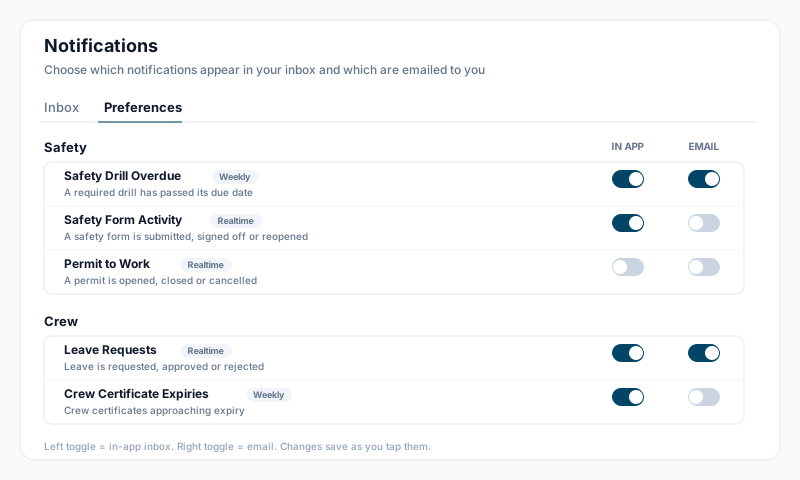
Open Preferences and you will see every notification type you are eligible to receive, grouped by module — Safety, Certificates, Technical, Crew, Vessel, Charter, Finance, Documents. Each row has a short description of what triggers it, and two switches on the right.
The two switches
| Switch | What it controls | Starting position |
|---|---|---|
| In app | Whether this type appears in your bell inbox | On for every type you are eligible for |
| Whether this type is emailed to you | Off, unless you switch it on or an administrator has subscribed you |
Switches save the moment you tap them — there is no Save button. Changes apply to future notifications only: switching In app off does not remove anything already in your inbox, and switching it on does not backfill what you missed.
Being eligible for a type is not the same as receiving one. You only get a notification if it actually applies to you — your vessel, your role, or a record you are involved in. Turning a switch on will not send you other people's departments' work.
Realtime and Weekly
Each row carries a small badge:
- •Realtime — sent within moments of the event happening. Approvals, sign-offs, submissions, incidents.
- •Weekly — collected and sent once a week, on Monday morning. Expiries, overdue drills, tasks due soon, low stock. Weekly types arrive in your inbox on Monday too, not just by email.
A weekly email is one message per notification type per vessel, listing everything in that group — so a fleet of expiring certificates is one email, not thirty.
Why your list looks different to a colleague's
The list is filtered by your permissions and by your company. If you have no Technical access you will not see technical types at all; if you have no access to medical records, medical case types are hidden completely. A few notification types also belong to one company's own reporting process, so they only appear for that company's crew. If a type you expect is missing, it is a permissions question for your captain or account administrator, not a settings one.
Email delivery
Notification emails come from info@sealogical.com. Add that address to your contacts or safe-senders list — on some vessel and shoreside mail systems the first one lands in junk, and after that everything else does too.
Two things about the Email switch are worth knowing:
- •It is shared with your administrator. The Email switch writes to the same list your captain or account administrator manages under Notification Management. Anything you switch on here shows up there against your vessel; anything they switch on for you shows here as already on. Either of you can switch it off.
- •It needs a vessel. If you are not assigned to a vessel — shoreside management, typically — the Email switch is greyed out and your email delivery is set up for you by your administrator. You can still switch an existing one off.
A sensible starting point
Nobody wants every type by email. A good rule: In app for everything, email only for what you would want to know about while you are off the vessel.
| Role | Worth having by email |
|---|---|
| Crew | My Document Expiries, Leave Requests, Required reading |
| Head of Department | The above, plus approvals in your area — Checklist Approval Required, Task Pending Approval, Crew Certificate Expiries |
| Captain / Chief Engineer | Emergency Incident, Permit to Work Overdue, Corrective Action Overdue, Safety Drill Overdue, Vessel Certificate Expiries |
Leave the noisy activity types (form activity, task completed, checklist completed) as In app only. They are useful to scan once a day; they are miserable as email.
Troubleshooting
| Problem | What to check |
|---|---|
| No emails arriving | Preferences tab — is the Email switch on for that type? Then check your junk folder and safelist info@sealogical.com |
| Email switch is greyed out | You are not assigned to a vessel. Ask your administrator to set up email delivery under Notification Management |
| Too many notifications | Switch off the In app toggle on the types you do not need, rather than ignoring the bell |
| A type is missing from the list | Your permissions do not cover that module. Ask your captain or account administrator |
| Emails stopped without you changing anything | Your administrator may have removed the subscription in Notification Management — switch it back on here |
| Nothing arrives at all, in app or email | Check you are still assigned to the vessel, then ask your administrator to confirm you are a recipient for that type |
Things worth knowing
- •Your preferences are yours — they follow you across every vessel you have access to, and no one else sees your inbox.
- •Dismissing a notification only affects your copy. Colleagues who were also notified still have theirs.
- •The bell always opens the notifications for the vessel you are currently in. The filters work across everything you can see.
- •If a notification is about a record you no longer have permission to open, the link will not take you anywhere — that is the permission boundary doing its job.