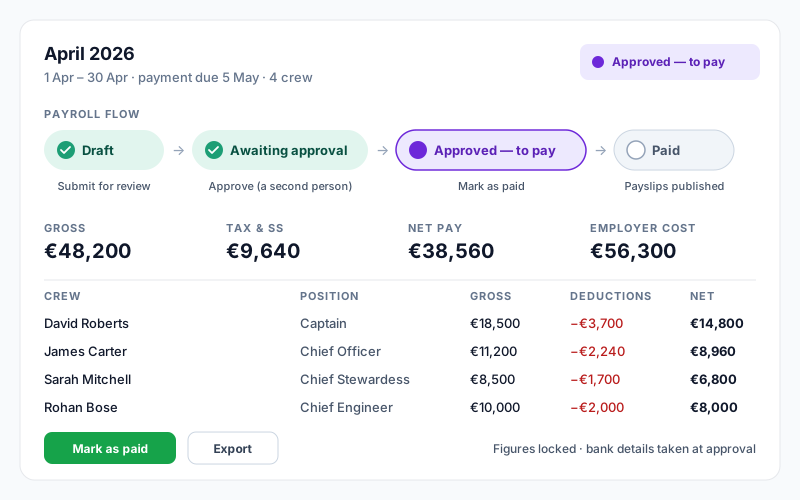
Payroll lives under Finance → Payroll. Each run pays one calendar month for one vessel. It is built from the crew's employment contracts, checked, approved by someone with approval rights, and then marked paid once the money has left the bank. The crew see their payslip when the run is marked paid.
Before You Start
Payroll is part of the Finance add-on, which must be switched on for the vessel (see "Finance: Trying the Add-on, Switching It On").
Every crew member you want to pay needs an employment contract that overlaps the month, with:
- •a base salary greater than zero
- •a monthly pay frequency — a contract paid daily or annually is listed as not included, because a run pays one month of salary
- •a salary currency, and the tax and social security rates (or a Tax profile, see below)
- •bank details on the Banking tab, verified, if you will pay by bank file
Is each crew member ready to be paid?
Anyone with payroll access sees a small Pay badge beside each name on the Crew list:
| Badge | What it means |
|---|---|
| ● green | Nothing stops or spoils the next payment |
| ▲ amber | The run will go ahead, but something will be wrong — no bank details, details nobody has verified yet, leave below the MLC minimum, or a contract the run will not pay |
| ✕ red | The run will stop on this crew member until it is fixed — for example no bank details when the employer requires a second approver, or no signed agreement when the employer requires one |
Click the badge to open the crew member's Employment tab, where the Payroll ready card lists exactly what is missing. Crew without bank details also see an Add your bank details task on their phone home screen, so they can send them in themselves.
The checks are the same ones the run's own payroll checks make, so a crew member shown as ready will not be stopped by them.
Two things are set once, by the account owner, under Settings → Fleet Employment:
- •the employing company — the legal employer named on contracts, agreements and payslips. Each vessel is given its company on its Vessel Info page ("Employing company" card)
- •the company's Payroll rules, Tax profiles and Pay items (see "Settings" below)
The Four Statuses
| Status | What it means |
|---|---|
| Draft | Entries can be added, edited, recalculated and deleted |
| Awaiting approval | Submitted; the figures are locked while someone checks them |
| Approved — to pay | Figures locked and bank details copied onto each entry. Nothing has been paid yet |
| Paid | The payment is recorded, payslips are published to the crew, and the run can no longer change |
Approving and paying are two separate steps. You approve the figures, make the payment from the bank, and then click Mark as paid on the day the money went.
Step 1: Create a Run
- •Go to Finance → Payroll
- •Click New period
- •Check the dates — a run must be one full calendar month (the 1st to the last day). The payment date is pre-filled from the employer's pay day
- •Click Create →
The run opens as a Draft with an entry for every crew member whose contract overlaps the month, already calculated: pro-rated base pay for joiners and leavers, allowances, tax and social security, employer contributions, recurring deductions and the leave figures.
A second run over the same month for the same vessel is refused. If the employer's rules say so, each month's draft run opens automatically on the 1st.
Crew who are not included
A notice at the top of the run names anyone with a contract in the month who has no entry, and why:
- •no payable salary on their contract — set a base salary on the contract, then use Recalculate entries
- •their contract is not paid monthly — a payroll run pays one month of salary
If they are genuinely unpaid, no action is needed.
Payment currency
If a crew member's payment currency differs from their salary currency, the run is not created and the message names who to fix.
Step 2: Review and Edit Entries
Click any row on a Draft run to open it. Base salary and allowances come from the contract and are not edited here — change the contract instead. You can enter:
- •Overtime hours, bonus, health insurance, pension and other deductions
- •Reimbursements — expenses repaid, such as travel or bank charges
- •Back-pay — owed from an earlier month and paid with this payday
- •Cash advance — money already paid out, deducted from this month
- •Leave pay out — leave balance settled in cash, with a Suggest link
Recurring deductions (a crew loan, for example) are shown on the entry and taken automatically; they are set on the crew member's Employment tab.
A reason is required for one-off figures
When an entry has a bonus, other earnings, reimbursements, back-pay, cash advance, leave pay out, other deductions or a typed Days to pay, the Reason for adjustments box must be filled in. The approver sees it.
A final month is paid for the days worked
When a contract ends inside the month, the entry is paid for the exact days of the engagement rather than a full month. Base pay is days × the contract's daily rate (monthly × 12 ÷ the salary divisor, normally 365), and it is capped at a full month.
On a €4,250 salary:
| Last day | Days paid | Base pay |
|---|---|---|
| 30 September | 30 | €4,191.78 |
| 31 August | 31 | €4,250.00 (capped) |
| 28 February | 28 | €3,912.33 |
Nothing changes for a crew member who stays. A full month is a full month whatever its length. The expanded entry for a final month shows a Days to pay box: leave it empty to use the contract dates, or type your own figure. Your figure survives Refresh from Leave and Recalculate entries.
Contracts that changed after the draft was made
If a contract is added, ended or its pay changes after the run was created, an amber banner names who and what changed. Click Recalculate entries to apply it — joiners are added, leavers removed, and every entry is recalculated while your typed figures are kept. The same option is in the run's ⋮ menu. A run cannot be submitted while the banner shows changes.
Negative net
If deductions and advances exceed gross pay on an entry, it is marked negative net and the run cannot be submitted until it is fixed — or until an approver overrides the check with a reason.
Leave figures come from Crew → Leave
The six leave figures on each entry are not typed in — they are computed from
the crew member's leave record and shown read-only.
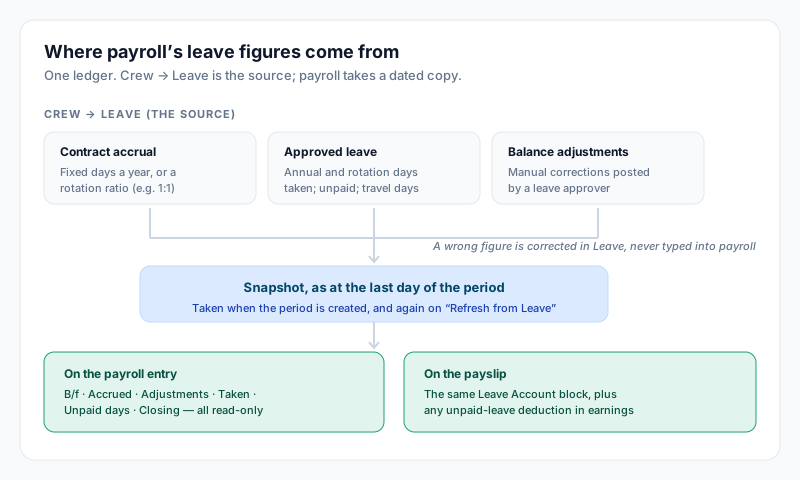
Three things feed them: the accrual settings on the employment contract (a
fixed number of days a year, or a rotation ratio such as 1:1), every
approved leave request, and any balance adjustments a leave approver
has posted.
Payroll reads all three as at the last day of the period — not as at today —
so a period created on the 25th still counts leave approved through to the 30th.
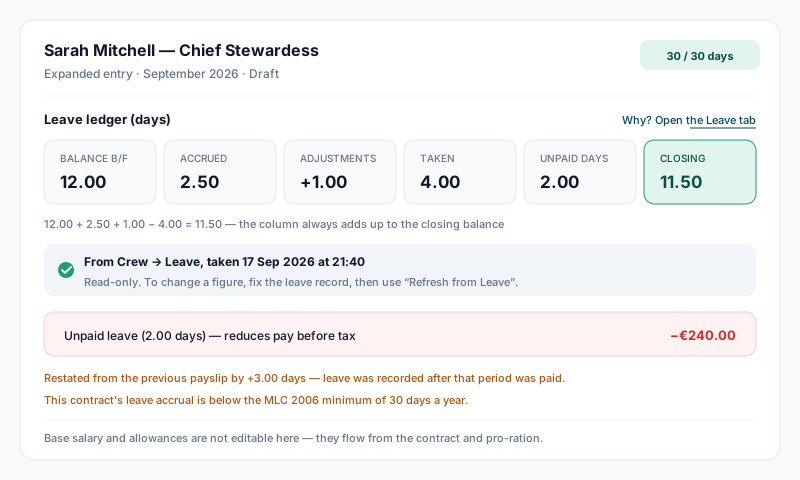
| Figure | What it means |
|---|---|
| Balance b/f | What the previous payslip closed on |
| Accrued | Days earned during this period, from the contract's accrual settings |
| Adjustments | Manual corrections posted in Crew → Leave inside this period |
| Taken | Approved annual and rotation days used inside this period |
| Unpaid days | Calendar days of unpaid leave inside this period |
| Closing | The balance at the end of the period |
The column always adds up: b/f + accrued + adjustments − taken = closing. The
closing figure is exactly what that crew member's Leave tab shows for the same
date — follow the Why? Open the Leave tab link on the entry to see it.
A negative closing balance is shown as a real negative number. It means the
crew member has taken more leave than they have earned, and it is deliberately
not rounded up to zero.
Fixing a leave figure
You cannot edit these boxes, and that is the point — a figure typed into payroll
would immediately disagree with the crew member's own leave record. Instead:
- •Correct it in Crew → [member] → Employment → Leave — record the missing leave, fix the dates, or post a balance adjustment
- •Come back to the payroll period and choose Refresh from Leave from the period's ⋯ menu
- •The figures are recomputed and the snapshot is re-dated
The Refresh from Leave option appears on Draft monthly runs only. On a
submitted or paid run the figures are final, and a later correction in Leave
appears on the next payslip as a restatement.
Submit is blocked when leave has changed
If leave is approved, edited or cancelled after the figures were taken, the
period will not submit. The message names the crew members affected and asks you
to click Refresh from Leave, check the entries, and submit again. This is
deliberate: it stops a payslip going out with a leave balance that the Leave
module no longer agrees with.
The same check refuses to submit if it cannot verify the figures at all — a
period is never submitted on an unchecked ledger.
Restatements
Leave recorded after a month has been paid cannot change that payslip — it
has already been issued. It appears on the next one as a restatement, shown as
its own line on both the entry and the payslip:
Restated from the previous payslip by +3.00 days — leave was recorded after that period was paid.
The figure is never absorbed silently, because a balance that jumps with no
explanation is exactly what a crew member will query.
Unpaid leave reduces pay
Unpaid leave is the one leave figure that moves money. Days of approved
unpaid leave inside the period are charged at the contract's daily rate
(monthly salary × 12 ÷ the contract's salary divisor, normally 365) and
subtracted inside gross, before tax — so no tax or employer contribution is
levied on pay that was not earned.
It shows on the entry and on the payslip as its own line, reading
Unpaid leave (2.00 days) — reduces pay before tax · −€240.00, and in the
CSV export as Unpaid Leave Days and Unpaid Leave Deduction.
Two bounds are worth knowing: the deduction can never exceed the pro-rated base
for the period (a fully unpaid month reduces base pay to zero, never below), and
allowances are left whole — only base salary is reduced.
Leave that a payroll period has consumed is locked
Once a period has been submitted or paid, the leave it was calculated from can no
longer be edited or cancelled from the Leave module. The refusal names the period
and points at the two things that can be done: ask payroll or a leave
approver to post a balance adjustment, or run an amendment.
Approving new leave whose dates fall inside an already-paid month is still
allowed — you are warned that it will appear as a restatement on the next
payslip rather than changing the paid one.
When leave is not tracked
Some entries keep no leave ledger at all, and say so in plain words instead of
showing zeros:
- •Supplementary runs — the ledger lives on the main period for that month
- •Vessels using the rotation planner rather than the Leave module
- •A crew member whose contract has no start date, so there is nothing to accrue from
Entries created before payroll was linked to Crew → Leave are labelled
Typed figures from before the Leave link and are frozen exactly as issued.
They are never recomputed.
MLC minimum
If a contract's accrual works out below the MLC 2006 floor of 30 days a year,
the entry says so under the ledger. It is judged on the contract's annual
entitlement, not on a single month — a rotation contract legitimately accrues
less in a month where leave was taken.
Before your first computed period: reconcile
If your vessel kept payroll leave figures by hand before the changeover, settle
them first. Go to Finance → Payroll → Reports → Leave reconciliation.
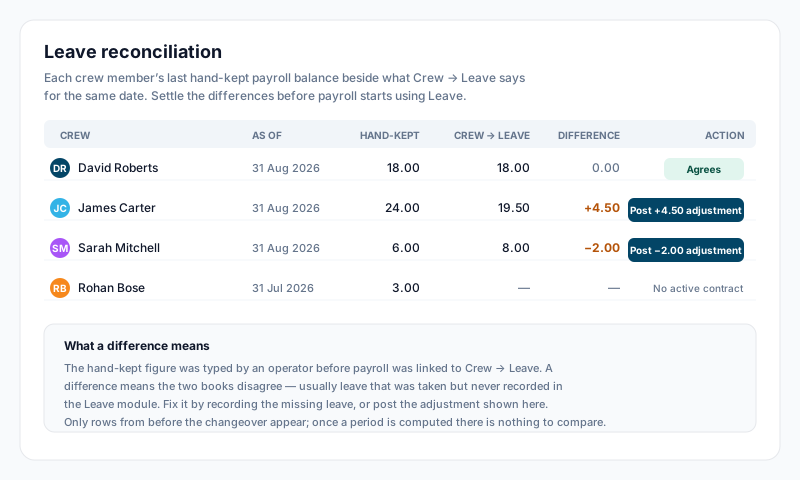
Each row shows the last hand-kept payroll balance beside what Crew → Leave says
for the same date. A difference almost always means leave was taken but never
recorded in the Leave module. Fix it by recording the missing leave, or click the
Post adjustment button on the row (this needs the Approve Leave permission).
Work through every vessel that runs payroll before you create your first computed
period. Once a period is computed from Leave there is nothing left to compare, so
those rows drop off the report.
Step 3: Payroll Checks
Every run is checked before it can be submitted and again before it is approved. The Payroll checks panel on the run lists what it found:
| Severity | Effect |
|---|---|
| Information | Shown for interest; nothing to do |
| Warning | Must be acknowledged (Acknowledge) before the run can be approved |
| Blocking | Stops the run until it is fixed or an approver uses Override… with a reason |
| Compliance critical | As blocking, but only the account owner can override it |
The checks cover, among others: negative net pay; missing or unverified bank details; no signed employment agreement on the vessel; annual leave below the MLC 2006 minimum; net pay up or down sharply on the previous paid run; figures typed by hand; pay going to a new bank account; a pay change approved after the cut-off; and a pay change backdated into a month already paid ("check whether back pay is owed"). Which of these warn, and at what thresholds, is set in the employer's Payroll rules.
An override records your name and reason on the run, and the check reopens if the figures change.
Step 4: Submit for Review
Check the totals (Gross / Tax / Deductions / Net) and the entries, then click Submit for review →. The run moves to Awaiting approval and the figures are locked.
Submit is refused if a check is blocking, if contracts or leave have changed since the figures were taken (use Recalculate entries or Refresh from Leave first), or if the run has no entries.
When the submitter can also approve
If you hold approval rights and the employer does not require a second approver, submitting approves the run in the same step (unless warnings are waiting to be acknowledged).
If a Second approver is required, someone other than the person who submitted must approve. The same person can never reject their own submission.
Step 5: Approve
The approver opens the run, checks it and clicks Approve. Approving:
- •locks the figures for good
- •copies each crew member's verified bank details and position onto their entry, so the run keeps what was on file at approval even if someone changes them later
- •produces the approval copy of each payslip (not yet visible to the crew)
- •on a vessel whose ledger is switched on, posts the month's crew cost to the ledger
Nothing is paid by approving. If the run needs changes, click Reject and give a reason; it returns to Draft.
Step 6: Pay the Crew
There are two ways to pay an approved run.
With a bank file (Payments)
The Payments panel on an approved run prepares a bank file per currency:
- •Prepare CSV, or Prepare SEPA file for euro payments when every crew member has an IBAN (the employing company's paying account must be set under Settings → Fleet Employment)
- •Release it to the bank — with a second approver required, someone other than the person who prepared it
- •When the bank confirms, mark each line Paid (or Failed / Returned with a reason), or use All paid for the batch
When everyone paid by bank transfer is confirmed, the run is marked Paid automatically. Crew with no bank details are listed separately to be paid another way. Preparing or downloading a bank file needs full bank-details access.
Without a bank file (Mark as paid)
Pay the crew from your bank as you normally do, then click Mark as paid and fill in:
- •Paid on — the day the money left (not a future date)
- •Payment reference (optional)
- •Paid from — the bank account that paid. On a vessel with one bank account linked to its ledger it is chosen for you; with several, choose it, or the ledger entry waits until someone does
What Mark as paid does
- •the run becomes Paid and cannot be undone except by a reversal
- •each payslip is rebuilt as the final version, with the payment date, reference and year-to-date figures, and published to the crew — each crew member gets a "Your payslip is ready" notice (it never shows an amount)
- •on a vessel without the ledger, a Crew Costs expense is posted per currency; on a vessel with the ledger, the payment is posted to the ledger against the Paid from account instead
- •a final settlement on the run is completed (see below)
Payslips
An approved or paid run has a Payslips section with View and Download per crew member, and Generate (or Generate all missing) if one was not produced.
Crew see their own payslips under Crew → [member] → Employment → Payslips, only once the run is Paid. A payslip not yet issued reads "Issued when the run is marked paid".
Crew confirmations and queries
On a paid payslip (and on an approved pay change) the crew member can click I confirm, or Raise a query with a question and an optional attachment (PDF, image, Word, Excel, CSV or text, up to 25 MB). Payroll staff see each payslip as Confirmed or Not confirmed.
The Crew confirmations and queries panel on a paid run shows how many crew have confirmed and lists every open query on the vessel. Someone with payroll edit access clicks Answer; the crew member is notified. An answer cannot be changed. Nobody is chased to confirm — it is optional.
Correcting a Run
A paid run is never edited. Choose the tool that fits:
| Situation | Use |
|---|---|
| An extra payment on its own date this month (a mid-month advance, for example) | Supplementary run — entries start at zero; enter the amounts in the adjustment columns |
| Money owed from an earlier month, paid with the normal payday | the Back-pay column on the next run |
| The paid run was wrong | Reverse run, then Correction run |
Reverse run (on a paid run) creates a reversal: the same run with every figure negated. Give the reason; the reversal goes through approval like any run, and once approved the original is marked reversed and its cost withdrawn from reports. Then Correction run opens a draft holding the original figures for the same crew and dates — edit what was wrong, then submit, approve and pay it as normal.
Supplementary, correction, reversal and final settlement runs carry a badge with their kind in the list.
Final Settlements
When a contract ends, prepare the final settlement on Crew → [member] → Employment ("Final settlement" card): notice paid in lieu, leave paid out, advances recovered and any other deductions. Tax is worked out the same way as the monthly pay, using the contract's tax profile and the employer's pay items.
Send to payroll… creates a separate draft run for that one crew member beside the month's run. Submit, approve and pay it like any run. When it is marked paid, the leave paid out comes off the leave balance and the contract records why employment ended. To change the figures, delete the draft run, edit the settlement and send it again.
On the Crew Member's Employment Tab
- •Banking — new or changed bank details are used only once someone other than the person who entered them verifies them (when a second approver is required; a crew member's own request always needs someone else). Until then pay goes to the current account. The crew member is told whenever their bank details change.
- •Pay changes — Request a pay change with the new salary and the date it takes effect. Nothing changes until someone else approves it; the contract then carries the new pay from that date and the old terms stay in Pay & terms history. A change dated into a month already paid is flagged on the next run so back pay can be checked.
- •Recurring deductions — Add deduction for a loan, an advance repaid in instalments, a court order, union dues or anything else. It is taken from every run from the start date until the total is recovered, in the contract's currency (a deduction in another currency is marked "Not taken"), and printed on the payslip.
- •Payslips — see above.
Settings (Account Owner)
Under Settings → Fleet Employment, each employing company has three buttons:
- •Payroll rules — Second approver, Require a signed employment agreement, Pay day and the month it is paid in, a pay cut-off day, Open each month's draft run automatically, the net-pay change and hand-typed-figure warning thresholds, the new-bank-account warning, and Show employer costs on payslips. Rules are versioned and apply from the next action on each run.
- •Tax profiles — named sets of income tax, crew social security, employer tax and employer social security rates. A contract picks a profile in Edit Contract → Tax profile instead of its own rates. A change is saved as a new version with a note of what changed; each pay line records the version it used.
- •Pay items — the name each line carries on the payslip, whether an earning is taxable, and the ledger account it is booked to.
A vessel with no employing company uses the Payroll dual control and Require a signed employment agreement switches on the Payroll page instead.
The Payroll overview tab shows pay across the fleet per currency, what is still to pay, and the Payroll register for a month (Download Excel).
Exports and Reports
Export CSV on a run opens three formats:
| Format | Contains | Available |
|---|---|---|
| CSV | Earnings, tax, deductions, adjustments, leave figures, bank name and last 4 digits, amount to pay | any run |
| Bank file | Full IBAN / SWIFT / account numbers and net pay; every download is logged; needs full bank-details access | once approved |
| GL journal | A balanced journal per currency for your bookkeeper, with totals only | once approved |
The Reports row on the Payroll page has Crew totals (a year's pay per crew member), Leave accounts and Leave reconciliation.
Permissions
| Permission | Effect |
|---|---|
| Payroll No Access | Cannot see pay. Finance access alone never shows salaries |
| Payroll Read Only | View runs, entries and payslips; export CSV and the GL journal |
| Payroll Read & Write | Create and edit runs, submit, answer crew queries, manage recurring deductions and final settlements |
| Can approve payroll runs | Approve, reject, release bank files, record payments and mark runs paid (needs Payroll Read & Write) |
Payroll sits under Finance in the permission editor and is never set by a preset — set it per person. The account owner always has full access.
Bank details access (card on the Payroll page, owner only) decides how much of a crew member's bank account each person with payroll access sees: No bank details, Last 4 digits only or Full details. By default editors see full details (every reveal is logged) and viewers the last 4 digits.
Captain protection
A Captain cannot see another Captain's pay, payslips or bank details — in Payroll as well as on the crew profile — unless they have been given Payroll access on the vessel. The account owner is never restricted.
Overtime
The default overtime multiplier is 1.25× the hourly rate (MLC 2006 Standard A2.3 minimum). The hourly rate is base salary ÷ 208 (MLC's 14 hours a day × 7 days × 4.33 weeks). The multiplier can be set per contract from 1× to 3×.
Tips
- •Keep contracts up to date — every Draft run recalculates from the contract.
- •Fix leave in Crew → Leave, never on the run, then use Refresh from Leave.
- •Approve, pay from the bank, then Mark as paid on the day the money went — the crew see their payslip only then.
- •To correct a paid run use Reverse run and Correction run; for an extra payment on its own date use Supplementary run.
- •The figures and bank details on a paid run are those that were on file at approval — that is deliberate, so payslips and reports show what was actually paid.