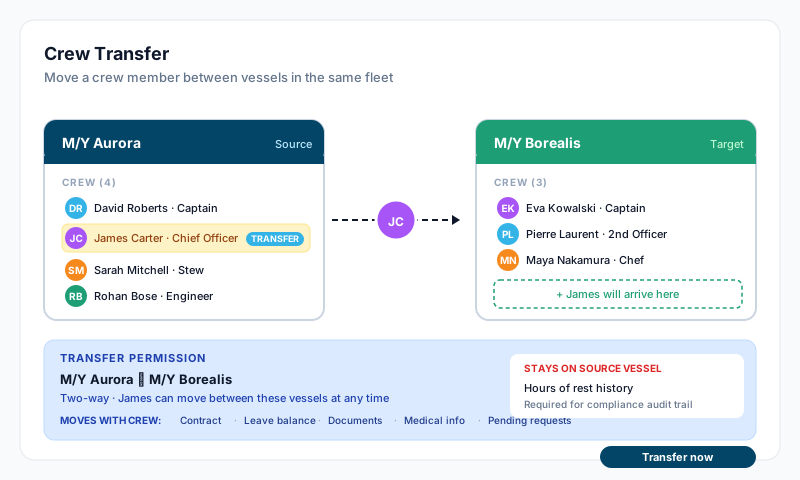
Transferring a crew member is a controlled, compliance-checked workflow. Before the move is approved, the system re-checks the crew member against the receiving vessel's requirements and records the decision in a permanent audit trail (ISM Code 6.3, MLC 2006, STCW).
Prerequisites
- •Both vessels are in the same fleet — transfers only work within a fleet. Check vessel settings to confirm.
- •You are authorised to approve — only an Account Owner, Account Administrator, or Sealogical Administrator can approve a transfer.
- •The crew member has an active employment contract — draft or ended contracts cannot be transferred.
- •A transfer permission is set up for the target vessel (Step 1).
Step 1: Set Up a Transfer Permission
- •Go to Crew → open the crew member's profile
- •Click the Employment tab → Transfers tab (under the current contract)
- •Click Add Permission, select the target vessel, and click Save
This creates a two-way permission — the crew member can transfer to the target vessel and back again later.
Step 2: Run the Controlled Transfer
On the Transfers tab, find the target vessel and click Transfer. A four-step wizard opens:
- •Transfer details — confirm the two vessels, choose same position or a different position on the receiving vessel, and set the sign-off date (last day on the current vessel) and sign-on date (first day on the receiving vessel). Dates must be near-term (within about two weeks).
- •Compliance check — the system re-assesses the crew member against the receiving vessel's crew matrix and shows a green / amber / red readiness report across: Crew Matrix Compliance (the qualifications the receiving position requires), Required Documents (passport, medical/ENG1, visa, seaman's book), Medical, Hours of Rest, Appraisal, and Familiarisation & Induction.
- •Review open records — acknowledge each category as Reviewed or N/A. Add a written reason only if you mark an open item Reviewed; N/A needs no explanation. A crew member can be transferred with an open gap (for example a document due for renewal) and have it resolved after joining — the gap is still recorded in the audit trail.
- •Approve — confirm the summary (dates, position, and the leave balance being carried over) and approve the transfer.
What Happens
- •The crew member's employment continues — only the vessel changes. Their employment record moves to the receiving vessel on the sign-on date (nothing is re-signed), and salary, tax, rotation and leave settings carry over. Their history shows as one continuous employment with a vessel-assignment timeline, not a series of separate contracts.
- •If the position changed, the department is updated to match the new role.
- •The crew member's leave balance is carried over as a recorded adjustment, and any leave beginning after sign-off follows them to the new vessel.
- •Medical information follows the crew member; documents and qualifications follow automatically (they're tied to the crew member, not the vessel).
- •Hours-of-rest history stays on the source vessel for compliance. If a rest month is still awaiting sign-off, the source vessel's master approves it.
- •If there is a gap between sign-off and sign-on, you're prompted to optionally record that period as leave (skippable).
Transfer History & Audit Trail
Every transfer writes a permanent, non-editable audit record — the compliance verdict, your category acknowledgements, the dates, the positions, and the approver. A transfer approved despite a critical gap is flagged as such. View the history on the Transfers tab on the crew profile.
Transferring Back
The transfer permission is reusable — you can transfer the crew member back to the original vessel at any time without setting up a new permission.
Removing a Transfer Permission
On the Transfers tab, click the delete icon next to the vessel. This removes that transfer destination. If it was the crew member's only transfer destination, the paired return permission is removed too. If they still have permissions to transfer to other vessels, the shared return permission is kept so those transfers keep working.