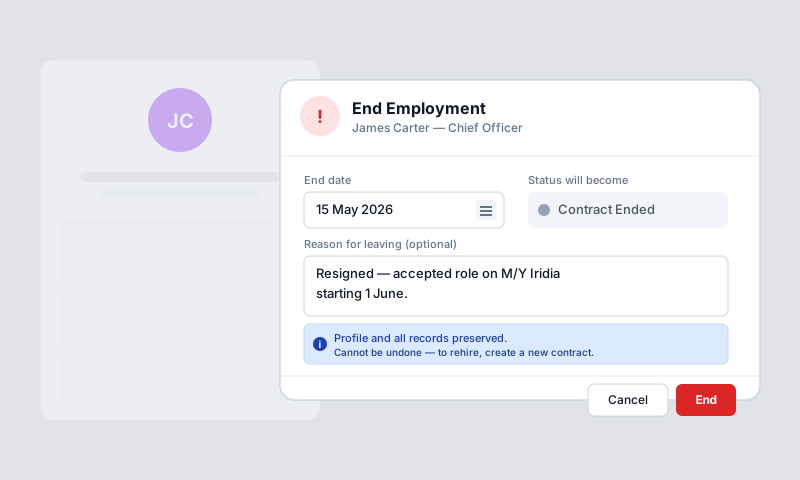
Who Can End Employment
You need Account Owner, Sealogical Administrator, or "Can Access Employment" permission on the vessel.
Steps
- •Go to Crew → open the crew member's profile
- •Click the Employment tab
- •On the current contract card, click the red End Employment button (next to the three-dot menu — the dropdown only contains Generate Employment Agreement and Assign New Position)
- •In the dialog, set the End Date (defaults to today)
- •Optionally enter a Reason for Leaving (e.g., "Contract ended", "Resigned", "Transferred to another vessel")
- •Tick the "I confirm this employment end has been authorised" checkbox — required, the End Employment button stays disabled until you do
- •Click End Employment to confirm
If the contract has already been ended, the system will refuse the action with "Contract is already ended" — only active contracts can be ended.
What Happens
- •The contract status changes to Completed
- •The contract is marked inactive (the crew member no longer appears as active crew)
- •They move to the employment history section
- •Their profile status changes to "Contract Ended" (only if they have no other active contracts on the vessel)
What Happens to Their Data
| Data | What happens |
|---|---|
| Crew profile | Kept — accessible via employment history |
| Documents & qualifications | Kept — they're tied to the crew member, not the contract |
| Employment documents | Kept — viewable on the past contract |
| Leave requests | Kept — historical records preserved; active requests are NOT auto-cancelled |
| Hours of rest records | Kept — for compliance history |
| Payroll records | Unaffected — must be finalised separately |
Important Notes
- •This action cannot be easily undone — there is no "reactivate" button
- •To rehire the crew member later, you will need to create a new employment contract
- •If you are changing their position (promotion or role change), use Assign New Position instead — this preserves salary and tax settings
- •Make sure any outstanding payroll is processed before ending employment
- •If a draft payroll period already includes this crew member, open it and click Refresh entries — the system will remove their now-stale row (and the toast will say "1 leaver removed"). Without that, submit-for-review will refuse the period as a stale draft
- •Active leave requests are not automatically cancelled — review and cancel them separately if needed