This guide gets Heads of Department, senior officers, and other senior crew up and running. You have read and write access across the vessel modules and can manage crew in your department, but account-level settings (users, fleet, billing) sit with shore management.
What You Can Do
- •Manage crew profiles, documents, and qualifications for your department
- •Approve leave requests and hours of rest submissions
- •Log drills, submit safety forms, and work the SMS Manual
- •Update certificates and technical records
- •Track movements, charters, and vessel records
Five Things to Do First
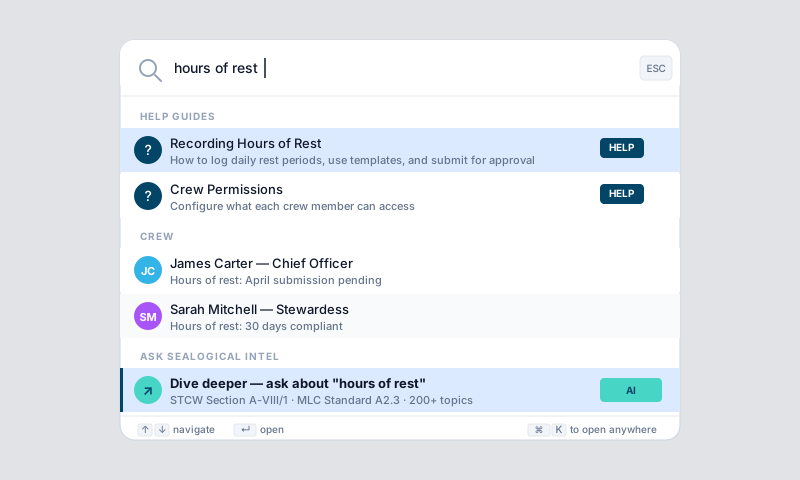
- •Browse the Help Guides — open the Help section to find a guide for every module. Read the guides for the modules you'll use most before you start clicking around — it'll save you time.
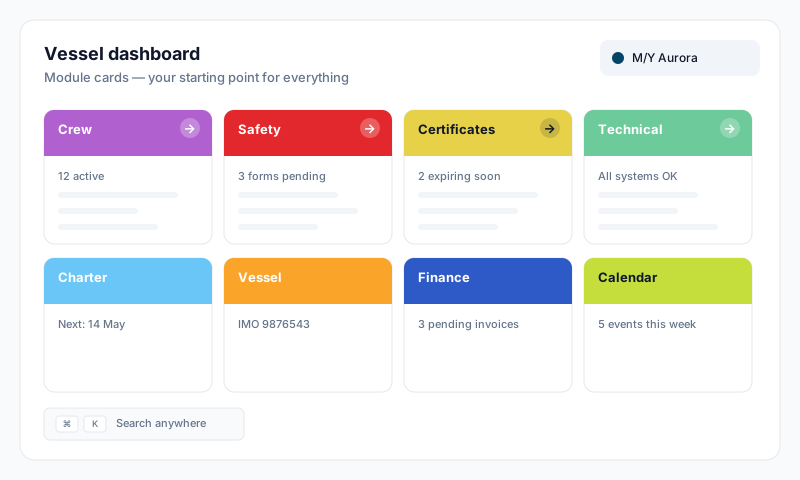
- •Check your dashboard — the module cards show counts of overdue items. Anything red needs attention.
- •Log your Hours of Rest — tap the bed icon in the header. Daily rest entries are mandatory under MLC and STCW.
- •Review your department's certificates — open Certificates and look for anything Expiring Soon or Expired in the categories that affect your role.
- •Check overdue items in Technical — open the Technical dashboard. Address Open Defects, Overdue Tasks, and Overdue Surveys in your area.
Day-to-Day Actions
Approvals you'll handle
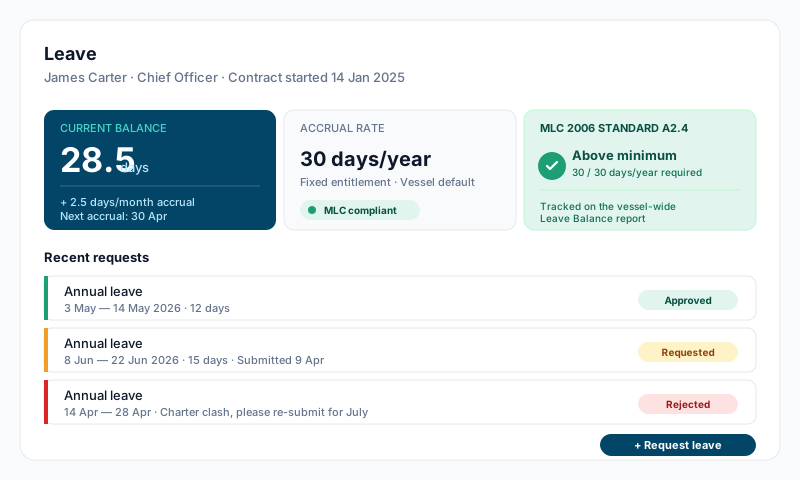
- •Leave requests — Crew → Leave. Tick "Approve" or "Reject" on requests from your department
- •Hours of Rest — Crew → Hours of Rest. Review and approve daily entries
- •SMS forms — Safety → SMS Forms. Some require captain or DPA review; some you can sign off
You can't approve your own submissions — that block is enforced everywhere.
Logging things as they happen
- •Drills — Safety → Drills. Use the matrix to find this month's row and tick the checklist as you go
- •Defects — report via Safety → SMS Forms → Corrective Action Form (choose the Defect / Defective Critical Equipment type). The form feeds the technical corrective-action tracking so it can be actioned
- •Safety forms — Safety → SMS Forms. Near-miss reports, observations, incident reports, handover checklists — fill them in promptly
Updating crew records
- •New documents — open the crew profile, Documents tab, drop in the file. Use Scan with AI for certificates and qualifications — it auto-fills dates and numbers
- •New crew — Crew → Add Crew Member. Set their permissions to View Only initially; the captain or admin can elevate later
What You'll See on Each Module
| Module | Your main jobs |
|---|---|
| Crew | Manage department members, approve leave, approve HoR, view manning |
| Safety | Log drills, complete SMS forms, work the SMS Manual, manage risk assessments and permits |
| Certificates | Upload renewals, monitor expiries, action items in the Status Summary |
| Technical | Log defects, update equipment, complete maintenance tasks, work surveys |
| Vessel | Submit Departure / Noon / Arrival reports, update vessel records |
| Charter | Set up charter bookings, assign guests, document references |
Tips
- •Help Guides cover every module — each module has its own guide with the full feature set. This Quick Start is just the orientation; use the detailed guides when you need depth
- •Photos beat memory — every defect, incident, or observation is more useful with a photo attached
- •Submit early, not late — PSC inspectors look for delays between events and reports. Same-day reporting is the standard
What You Cannot Do
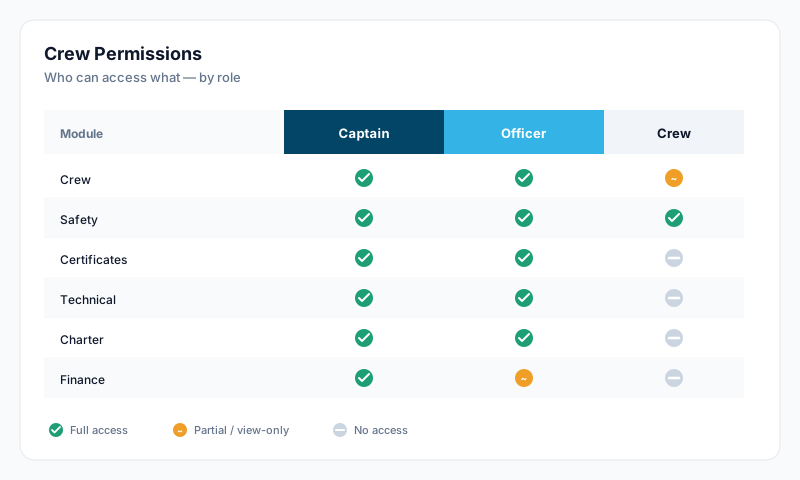
- •Add or remove user accounts, or change other crew's permissions
- •Edit fleet-wide settings or account billing
- •View employment contracts, salary, or medical information (these stay with management)
If you need one of these, ask an Account Owner, Account Administrator or Sealogical.