What Crew Training does
Crew Training is where a crew member requests a training course, the Master and a Manager sign it off, and the completed course and its certificate are recorded against the crew member. Each crew member has a Training tab on their profile listing their own requests, and people with register access see every request on the vessel in the Crew Training register.
It lives in two places:
- •Crew -> [crew member] -> Training -- the crew member's own requests. Visible to the crew member on their own profile, and to approvers and elevated users.
- •Crew -> Crew Training -- the vessel-wide register, in the crew area's side menu. Visible only to people with register access (see Permissions below).
If your Training tab looks different -- a course catalogue, a training plan and a reimbursement policy -- your account runs the catalogue-driven Crew Development Programme. Read the Crew Development Programme guide instead.
Enabling the module
Crew Training is off by default. An account owner or admin turns it on per vessel under Settings → Vessel Settings, where the Crew Training column has an On/Off switch per vessel, and the column's menu can turn it on for every vessel at once. Until it is on, the Training tab and the register are hidden and any training page reports that Crew Training is not enabled on this vessel.
Requesting training
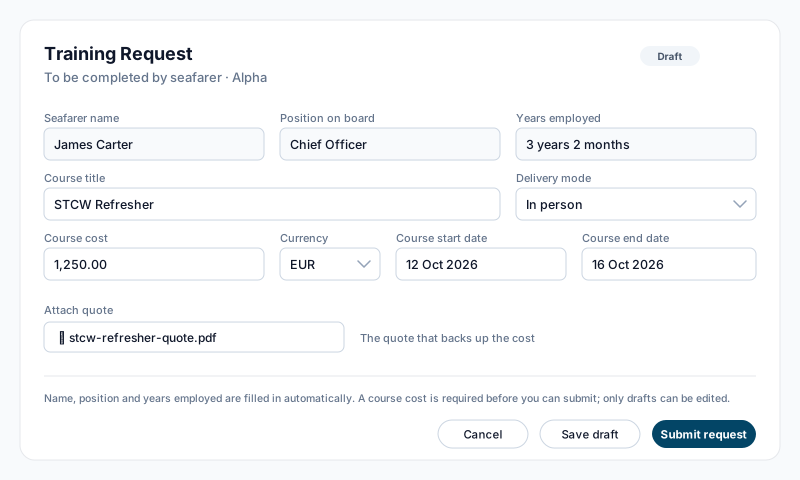
From the Training tab, press Request training. The form is the seafarer's section of the request:
- •Seafarer name, Position on board and Years employed are filled in automatically from the profile and the active employment contract.
- •Course title -- typed in free text (for example STCW Refresher). There is no course catalogue; name the course yourself.
- •Delivery mode -- In person or Online.
- •Course cost and currency -- the course fee. A request cannot be submitted without a cost.
- •Course start and end dates.
- •Attach quote -- the course quote that backs up the cost.
Save draft keeps the request editable. Submit request sends it for review and notifies the Master-level approvers for the crew member's department. Only drafts can be edited; once submitted, the request is read-only.
A crew member fills in their own request. Approvers and elevated users can also raise one on a crew member's behalf, but only for crew within their department scope.
Two-stage approval
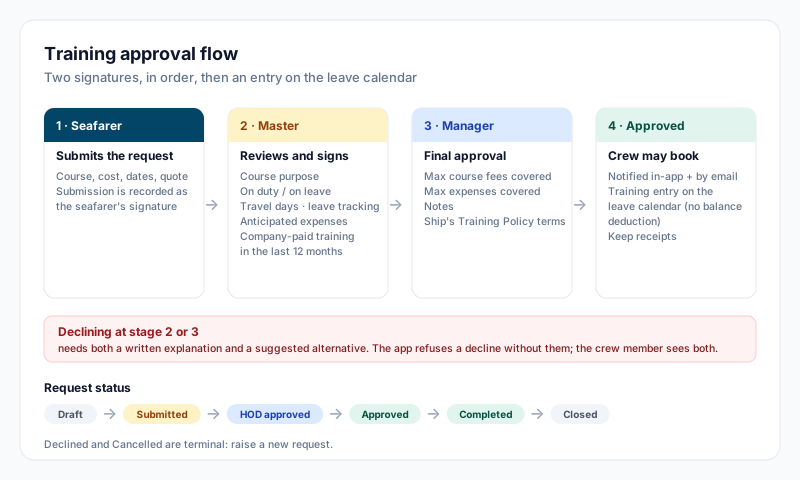
Every request needs two signatures, in order. Each is recorded on the request page with the signer's name, position and date, and the crew member's own submission is recorded as the seafarer's signature.
- •Master -- reviews the submitted request and completes the Master section: the course purpose (Organization's Request, New Regulation, Certificate Revalidation or Career Advancement), whether the course is taken on duty or on leave, travel days, leave tracking (Normal Leave, Neutral or Duty Days), estimated anticipated expenses for travel, lodging and food, and whether the company has paid for training for this seafarer in the last 12 months. Anticipated expenses are added to the request as their own line so the expected total includes them. The Master also gives a reason for supporting the training. Approving notifies the Manager-level approvers and the crew member.
- •Manager -- gives final approval. The Manager can cap what is covered (a maximum for course fees and a maximum for expenses) and add notes. The crew member is then notified in-app and by email that they may book, together with the approved terms.
The Master's signature must be on the request before the Manager can approve it.
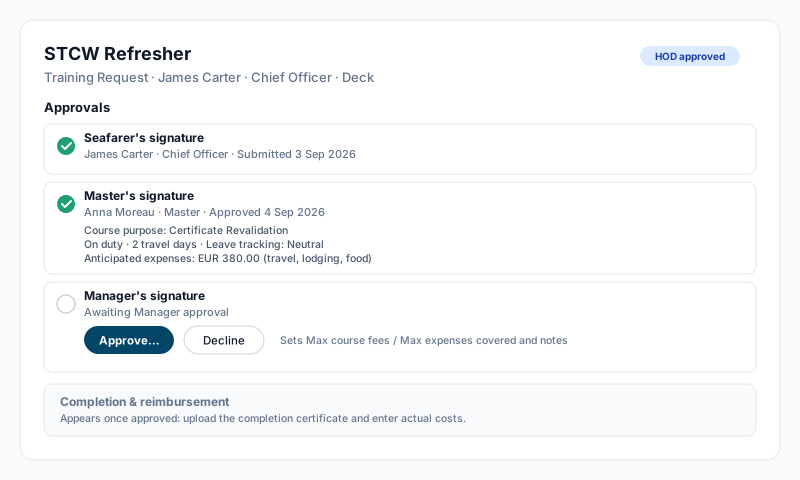
Guardrails: you can never sign off your own request unless you hold elevated account access. Declining is allowed at either stage, but requires both a written explanation and a suggested alternative -- the app refuses a decline without them, and the crew member sees both.
The Manager's approval panel restates the ship's Training Policy terms: courses and pre-approved expenses are paid according to that policy, meals at the ship's per diem rate, and a course paid by the employer is recoverable from the seafarer on an inverse pro rata basis if they resign or are dismissed within 12 months of completing it.
The leave calendar
On final approval the app creates a training entry on the crew member's leave calendar covering the course days and any travel days. These days do not deduct the annual-leave balance. If the crew member's contract has no leave policy assigned, the approval still goes through but the request page shows a warning that no calendar entry could be created. Cancelling an approved request removes the calendar entry again.
After the course
Once a request is approved, a Completion & reimbursement section appears on the request page. When the course is done, upload the completion certificate and enter the actual cost against each line. If actual spend exceeds the approved estimate, an explanation is required before the completion is recorded. Recording the completion moves the request to Completed, files the certificate under the request's Documents, and notifies the approvers to verify it for reimbursement.
Withdrawing or cancelling
A crew member can withdraw their own request, and an approver or admin can cancel one, at any point up to and including approval. A reason can be recorded, and the crew member is notified when someone else cancels their request. A cancelled request cannot be reopened -- raise a new one.
Request statuses
- •Draft -- saved, not yet submitted. Still editable.
- •Submitted -- awaiting the Master.
- •HOD approved -- the Master has signed; awaiting the Manager.
- •Approved -- both signatures recorded; the crew member may book.
- •Declined -- refused by the Master or Manager, with the explanation and suggested alternative.
- •Cancelled -- withdrawn by the crew member or cancelled by an approver or admin.
- •Completed / Closed -- certificate and actual costs recorded.
Permissions
Access is controlled by the per-vessel switch plus four settings on each crew member's permissions, under Settings -> Crew Permissions:
- •Can view the Crew Training register (all crew) -- read-only view of every request on the vessel.
- •Can approve training applications as HOD -- act as the Master (first signature).
- •Can give final training approval (Captain/Purser) -- act as the Manager (second signature).
- •Training Department Scope -- the departments a register viewer or first-stage approver is limited to. Leave it empty for all departments; a non-empty list restricts both what they can see and what they can approve.
Crew members always see and manage their own requests. Account owners, superadmins and account admins scoped to the vessel have elevated access: they see everything, can sign at both stages and are not limited by department. A crew member with none of these settings sees only their own Training tab, and the register is hidden from them.