Who this guide is for
This guide covers the Crew Development Programme as it runs on Inkfish vessels: the Course Catalogue, each crew member's training plan, the Crew Development Application with its eligibility checks and cost lines, the two-stage approval, and reimbursement under the Crew Development Policy. Every other account runs the standard Training Request flow, which is described in the Crew Training guide. The permissions, the per-vessel switch and the vessel register work the same way on both, so they are only summarised here.
Where to find it
- •Crew -> [crew member] -> Training -- the crew member's training plan, their applications, and the buttons to browse the catalogue and apply. Visible to the crew member on their own profile, and to approvers and elevated users.
- •Crew -> Crew Training -- the vessel register: every application and planned course on the vessel, with rows awaiting your decision sorted to the top. Visible to people with register access.
- •Settings -> Fleet Training -- the account-wide centre for admins: fleet overview and budget, the Course Catalogue manager, the monthly report, programme settings and the clawback watch list.
The Course Catalogue
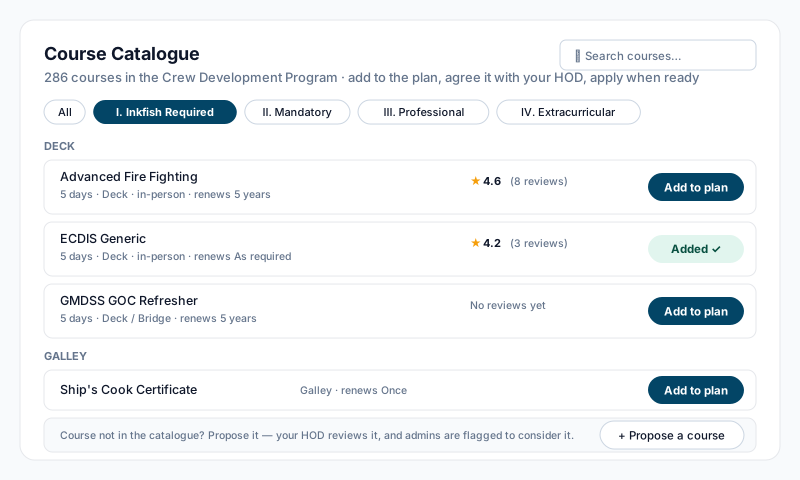
The catalogue is the account's list of approved courses, seeded from the Inkfish Crew Development Course Catalogue. Open it from the Training tab with See courses. Each course shows its department or pathway, duration, format and renewal interval, and a star rating from crew who have completed it. Filter by category or search by course, department or pathway.
Courses fall into four categories, and the category decides the reimbursement and day-count rules that apply automatically when the course is picked:
| Category | Course fees | Accommodation and flights | Per diem | Course days | Travel days | Clawback |
|---|---|---|---|---|---|---|
| I. Inkfish Required | 100% reimbursed on completion | Covered (accommodation capped per night) | Yes | Working days | Neutral | Exempt |
| II. Mandatory | 100% reimbursed on completion | Covered (accommodation capped per night) | No | Working days | Neutral | Exempt |
| III. Professional | 100% reimbursed on completion | Covered (accommodation capped per night) | No | Neutral days | Neutral | Applies |
| IV. Extracurricular | 100% reimbursed on completion | Not covered | No | No time credit | No time credit | Applies |
For categories I to III, course fees above the account's threshold are paid 50% upfront by the company and 50% on completion. The threshold, the accommodation cap, the per diem rate, mileage rates and the clawback window are all programme settings (see Fleet Training below), so the figures on your screen are the ones your admins have set.
If a course is not in the catalogue, a crew member can still propose it: on the application, choose Course not listed, name the course and pick the category that fits best. Submitting a proposed course notifies the account admins, who see it under Proposed by crew in the catalogue manager and can add it with one click.
The training plan
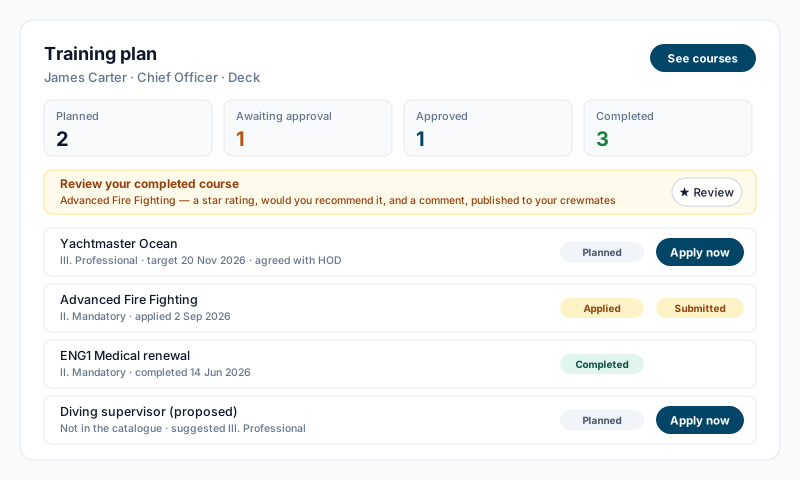
Each crew member's Training tab opens with their Training plan: the courses they intend to book, each with an optional target date and notes, agreed with their Head of Department. Add a course from the catalogue with Add to plan, or press Propose a course at the foot of the catalogue for one that is not listed. The tab shows four counts above the plan: Planned, Awaiting approval, Approved and Completed.
A plan item's status follows the application made from it:
- •Planned -- an intention with no live application. Use Apply now on the item to start the application, pre-filled with the course.
- •Applied -- an application was submitted from this item.
- •Completed -- the linked application finished.
- •Dropped -- set aside.
If the application is declined or cancelled, the item returns to Planned so the intention stays visible, and the decline reason is shown on it. An item linked to an application cannot be removed; it stays on the plan for the record.
Applying for a course
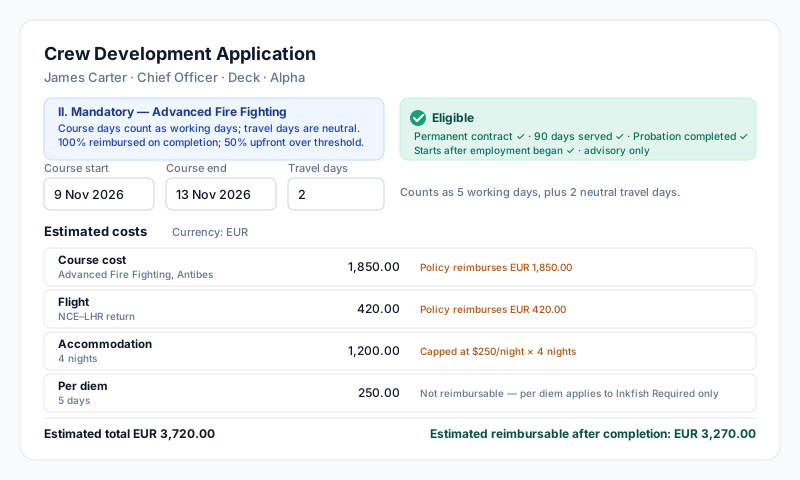
Press Apply now on a plan item, or apply from the catalogue, to open the Crew Development Application. The crew member's name, position and department come from their profile. The form has four parts:
- •Course -- pick from the catalogue or choose Course not listed. Once a course is chosen, a panel states the rules that apply to its category: how course and travel days count, and what is reimbursed.
- •Dates and details -- course start and end, travel days, online hours if the course is online, course location, course link, and a required course description and reason for request. Below the dates the form works out the day count: for example, five working days plus two neutral travel days. Online study counts one neutral day per eight hours by default.
- •Estimated costs -- one currency for the whole application, then cost lines: course cost, flight, transport, accommodation (with the number of nights), car miles (with the distance, paid at the mileage rate), per diem and other. As you type, each line shows what the policy will reimburse and why a line is capped or excluded, and the form totals the estimated reimbursable amount.
- •Supporting documents -- optional quotes or anything else that backs up the estimate. Files can also be attached to individual cost lines.
Eligibility. While the dates are being filled in, the form checks the crew member's active contract against the policy and shows the result next to the dates: a permanent or rotational contract, 90 days of onboard service, probation completed, and, for courses longer than 30 days, the first employment anniversary. A course dated before the contract started is flagged as not reimbursable. These checks are advisory: a failing check is shown as a warning to the applicant and recorded on the application for the approvers, who may still approve at their discretion. Inkfish Required courses skip the service and probation checks, because they are initiated by the vessel. A new permanent or rotational crew member can apply for a Professional or Extracurricular course from day one, with reimbursement contingent on passing probation.
Save draft keeps the application editable; Submit sends it for review, snapshots the eligibility result and the cost calculation, and notifies the HOD-level approvers for the department. Only drafts can be edited.
A crew member fills in their own application. Approvers and elevated users can also raise one on a crew member's behalf, within their department scope. This is how a vessel signs a group of crew up for an Inkfish Required course.
Two-stage approval
Every application clears two gates, in order. Each decision is recorded on the application page with the approver's name, position and date.
- •Head of Department -- reviews the submitted application against the crew member's plan. The HOD can add a note that the other approvers see but the applicant does not. Approving moves the application to HOD approved and notifies the final approvers and the applicant.
- •Captain or Purser -- gives final approval. The page summarises the HOD's decision and, if the estimated course fees exceed the 50/50 threshold, shows the upfront amount the company will owe. The final approver can cap what is covered (Max course fees covered and Max expenses covered) and add an internal reason for supporting. The applicant is then notified in-app and by email that they may book, together with any caps and, where it applies, a note that the 12-month clawback applies.
Guardrails: you can never HOD-approve or final-approve your own application unless you hold elevated account access. Declining at either stage requires both a written explanation and a suggested alternative; the app refuses a decline without them, and the applicant sees both.
On final approval the app creates a training entry on the crew member's leave calendar covering the course days and travel days. These days never deduct the annual-leave balance. If the crew member's contract has no leave policy assigned, the approval still goes through and the application page shows a warning that no calendar entry could be created. Cancelling an approved application removes the entry again.
After the course: completion and reimbursement
Every category is reimbursement-based, Inkfish Required included: the crew member pays, keeps receipts and is reimbursed on proof of completion. The application page's Completion & reimbursement section tracks this.
- •Upfront payment. If the course fees were above the threshold, the section shows the upfront amount owed (50% of course fees). A Purser or final approver presses Record upfront payment once it has been paid, and the reimbursement status becomes 50% paid upfront.
- •Completion. When the course is done, the crew member (or a final approver on their behalf) uploads the completion certificate and enters the actual amount against each cost line. If actual spend exceeds the approved estimate, an explanation is required before the completion is recorded, and full reimbursement of the overrun is not guaranteed. Recording the completion runs the reimbursement calculation, applying the category rules, the accommodation cap, the mileage rate and any approval caps, and shows the reimbursable total in USD. The approvers are notified to verify it. If the catalogue course carries a renewal interval, the certificate's expiry date is recorded on the application.
- •Reimbursement status. After completion a Purser or final approver marks the application 50% reimbursed or fully reimbursed. Marking it fully reimbursed closes the application.
Clawback. For Professional and Extracurricular courses, a 12-month clawback window (the length is a programme setting) starts at the course end date and is shown on the application to approvers. If the crew member leaves within the window, the unamortised portion can be recovered pro rata. Inkfish Required and Mandatory courses are exempt.
Reviewing a course
Once a catalogue course is completed, the crew member's Training tab prompts them to Review it: a star rating, whether they would recommend it, and a comment. Reviews are published to crewmates on the catalogue and in the course picker, so the next applicant chooses with first-hand experience. Only crew with a completed application for that exact course can review it, and reviews never cross accounts. Account owners and admins can hide an inappropriate review from the catalogue page.
Application statuses
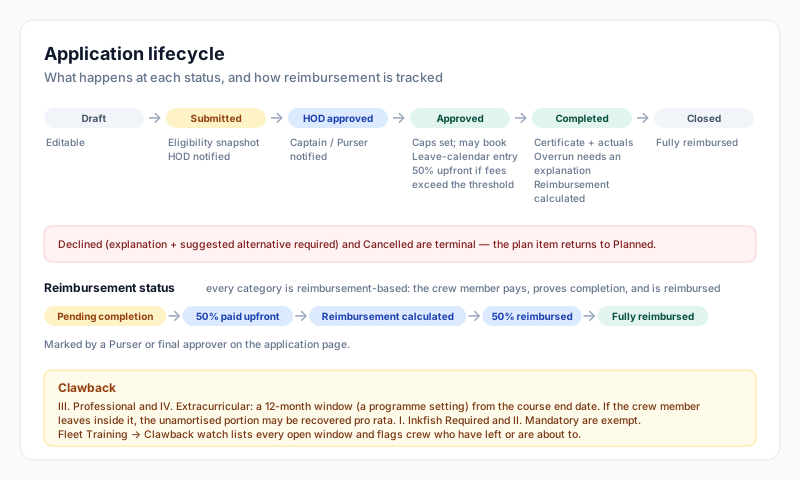
- •Draft -- started, not yet submitted. Still editable.
- •Submitted -- awaiting HOD review.
- •HOD approved -- passed HOD, awaiting the Captain or Purser.
- •Approved -- cleared both stages; the crew member may book.
- •Declined -- refused at either stage, with the explanation and suggested alternative.
- •Cancelled -- withdrawn by the applicant or cancelled by an approver or admin. Possible at any point up to and including approval.
- •Completed -- certificate and actual costs recorded; reimbursement calculated.
- •Closed -- fully reimbursed.
Fleet Training (account admins)
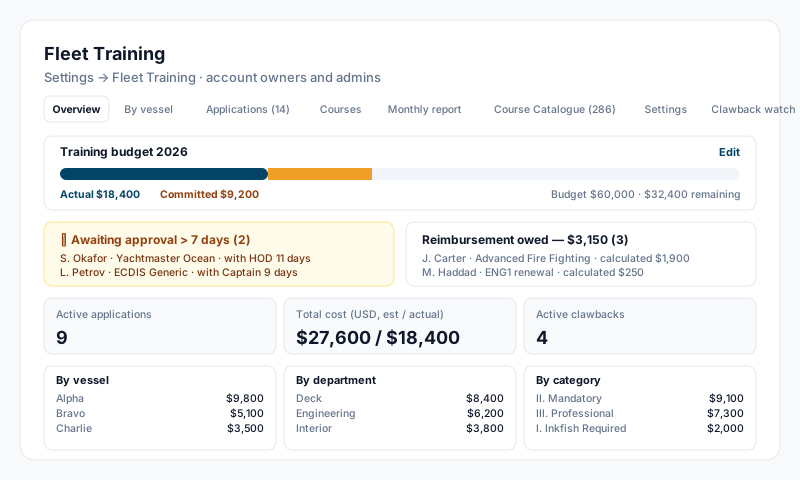
Settings -> Fleet Training is the account-wide centre for the programme. It is available to account owners, account admins and superadmins; vessel-level permissions do not apply here. It has eight tabs:
- •Overview -- the annual training budget in USD with actual and committed spend against it (Set budget to enter it), applications awaiting approval for more than 7 days, reimbursement owed, active applications, total cost, active clawbacks, and spend by vessel, department and category, plus the pipeline.
- •By vessel -- awaiting, approved and completed counts and spend per vessel.
- •Applications -- every application in the account, filterable, with an Export CSV.
- •Courses -- group-training opportunities (several crew planning or applying for the same course, with a cohort CSV) and cost benchmarking of completed courses.
- •Monthly report -- the month's applications and cost, Export CSV for the Crew Development team, and Mark as reported to stamp the month as sent.
- •Course Catalogue -- add, edit or retire courses (name, category, department, duration, renewal, pathway and notes), and courses proposed by crew that are not yet in the catalogue. A retired course stays on past applications but leaves the picker.
- •Settings -- the programme figures: accommodation cap per night, per diem per day for Inkfish Required, mileage rate per mile and per kilometre, the 50/50 upfront threshold, online hours per neutral day, the clawback window in months, and indicative USD exchange rates. When the policy is revised, change the number here.
- •Clawback watch -- every application still inside its clawback window, and a Recover on departure list of crew in that window who have left or whose contract is due to end, with the amount at stake and a CSV.
The Crew Training switch per vessel lives under Settings → Vessel Settings, as on every account.
Permissions
The same four settings as the standard flow, under Settings -> Crew Permissions:
- •Can view the Crew Training register (all crew) -- read-only view of every application and plan item on the vessel.
- •Can approve training applications as HOD -- first-stage approval, and raising applications on behalf of crew in scope.
- •Can give final training approval (Captain/Purser) -- final approval, caps, recording the upfront payment, completion on a crew member's behalf and the reimbursement status.
- •Training Department Scope -- the departments a register viewer or HOD is limited to. Leave it empty for all departments.
Crew members always see and manage their own plan and applications. Account owners, superadmins and account admins scoped to the vessel have elevated access: they see everything, can approve at both stages and are not limited by department. Fleet Training in Settings is admin-only.