The Drills module is the vessel's drill log. It tracks every SOLAS, operational, security and vessel-specific drill, shows you at a glance what is due and what has slipped, and stores the evidence a Port State Control inspector will ask for.
There are two sides to it:
- •This guide — the day-to-day job: reading the matrix and recording drills as you run them.
- •Setting Up the Drill Schedule — the one-off setup: which drills apply to this vessel, how often, from when, and what has to be filled in before a drill can be marked complete.
Where to Find It
- •From the vessel dashboard, open the Safety module
- •In the safety sidebar, click Drills
You will land on the Drills Planning Matrix for the current year.
Reading the Matrix
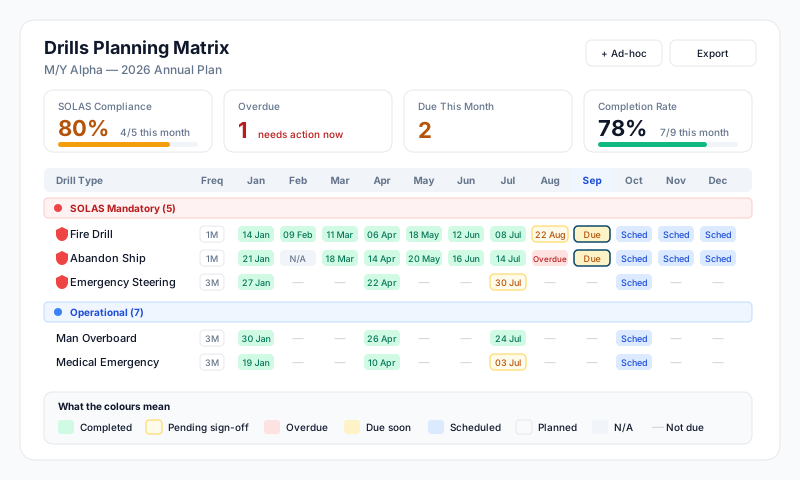
Every drill type is a row. Every month of the year is a column. Each square tells you the state of that drill in that month.
- •Drill Type column — the drill's name. A red shield next to it means SOLAS mandatory.
- •Freq column — how often it is required, as a short code: 1W weekly, 2W fortnightly, 1M monthly, 2M every two months, 3M quarterly, 6M every six months, 1Y annual, Ad-hoc for one-offs.
- •Rows are grouped by category — SOLAS Mandatory, Operational, Security, Specialized and Regional. A drill your vessel added itself sits inside whichever of those it was filed under, the SOLAS Mandatory heading included; anything uncategorised falls into a Custom Drills group at the bottom. A drill under the SOLAS heading is not necessarily a SOLAS drill: only the built-in ones carry the red shield and count toward SOLAS compliance.
- •The current month column is tinted blue.
- •Use the year arrows at the top left to look at last year or plan next year, and the category filter to show one group at a time — useful when you are working through SOLAS items before a flag inspection.
What the colours mean
| Colour | Status | What it means |
|---|---|---|
| Green | Completed | The drill was carried out and recorded. The date is shown in the square. |
| Pale amber | Pending sign-off | Recorded, but waiting for a second person to approve it. It does not count as complete until they do. |
| Red | Overdue | The period has passed with no record. |
| Amber | Due soon | Due now, or coming up within the warning period set for that drill. |
| Blue | Scheduled | Planned for a future month. |
| Grey | Planned | On the plan, but further out. |
| Slate "N/A" | Not applicable | The period was deliberately excused, with a written reason. Left out of the compliance percentage. |
| Dash (—) | Not due | This drill is not required in that month. |
The four cards at the top
- •SOLAS Compliance — of the built-in SOLAS-mandatory drills due this month, how many are done. A drill your vessel created never counts here, even when it is filed under the SOLAS Mandatory heading.
- •Completion Rate — the same sum this month, across every drill type and not just SOLAS.
- •Overdue — how many periods have passed unrecorded anywhere in the year you are looking at.
- •Due This Month — how many are amber anywhere in that year.
So the first two are a snapshot of the month, and the last two are a running total for the whole year on screen. In all four, periods marked N/A are left out, and ad-hoc drills are ignored entirely. A drill that is recorded but still waiting on its second signature counts as done — the drill happened; the amber square keeps the outstanding approval visible.
Recording a Drill
- •Find the drill's row and the month you ran it in
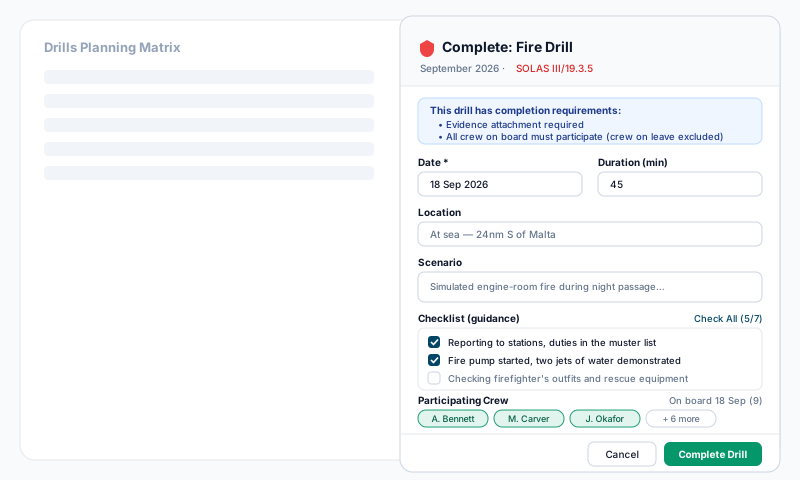
- •Click the square — the Complete Drill panel slides in from the right
- •Fill it in:
- •Date (required) — the day the drill was actually run. It defaults to today when you are recording the current month, and to the nearest day inside the month you clicked otherwise. Change it if it is wrong; dating it into a month that has already passed asks you for a reason (see below).
- •Duration — in minutes.
- •Location — where the drill was held, e.g. "At sea — 24nm S of Malta" or "Alongside, Port Vauban".
- •Scenario — what was actually exercised, in your own words. Not the checklist — the story. "Simulated engine-room fire during night passage, fire party deployed, boundary cooling set."
- •Checklist — the required elements for that drill type, as tick-boxes. Tick what you actually did. Leaving an item unticked does not stop you saving, and that is deliberate: an honest record showing two items not covered is worth far more than a row of ticks. Anything you leave unticked is pinned to the top of the finished record so it cannot be missed. On a SOLAS drill where your vessel has added its own items, the regulation's own items carry a small red SOLAS tag so you can tell the two apart.
- •Participating Crew — everyone who took part. Only crew who were actually on board on that date are offered; anyone joining later or away on leave is left out automatically, so nobody is ever marked absent from a drill they could not attend. Select All ticks the lot.
- •Performance Rating — Excellent, Satisfactory, Needs Improvement, or Unsatisfactory.
- •Debrief / comments (required) — observations, deficiencies, lessons learned. The drill cannot be saved without it. This is the part an inspector reads.
- •Action items / follow-up — up to 20 things to carry into the next one, e.g. "Renew locker radio batteries". They are shown again automatically when that drill type is next recorded, so nothing quietly gets dropped.
- •Evidence — photos, muster lists, attendance sheets, debrief notes. Attach them now: files cannot be added to a drill once it has been completed.
- •Click Complete Drill
The square turns green and the next occurrence is scheduled automatically.
Requirements set for your vessel
Some drills carry extra rules, set by your captain or shore office. If so, a blue box at the top of the panel lists them, and each one crosses itself out as you satisfy it. They may include a required attachment, a minimum number of crew (or everyone on board), and a second-person sign-off. These are enforced when you save — you cannot get past them by leaving a box blank. See Setting Up the Drill Schedule for how they are chosen.
Some drills ask for more in a quarter month
A few drill types have extra checklist items that only appear when the drill falls in a quarterly month (March, June, September, December). They cover periodic checks that do not need doing every month, and they appear under a Quarterly Additional heading in the same checklist.
Recording a drill you ran last month
If you date the completion in a month that has already passed, the panel asks for a reason for retrospective entry before it will save — for example "carried out at the time but not logged" or "migrated from the paper log". The finished record permanently shows when it was entered, by whom, and that reason, so a late entry is never mistaken for a contemporaneous one.
Looking at a Finished Record
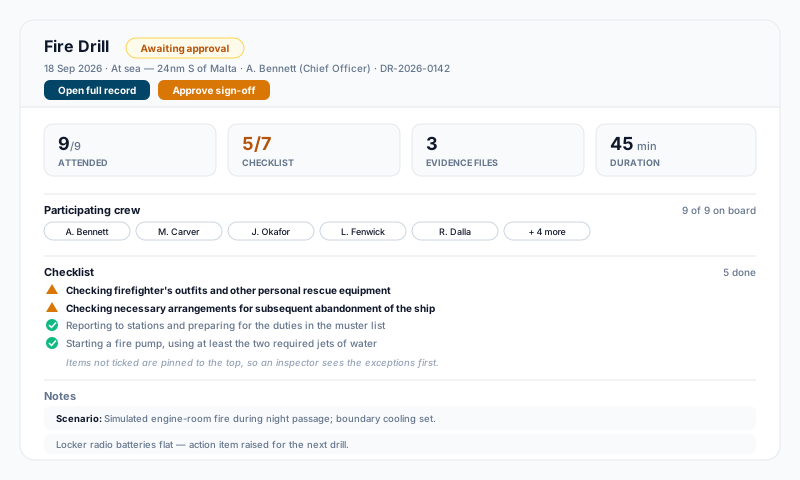
Clicking a completed (green) or pending (pale amber) square opens the record. It shows:
- •Who ran the drill, when, where, and the drill number
- •Attended — how many crew took part, out of how many were on board
- •Checklist — anything left unticked is listed first, with a warning triangle; ticked items follow underneath
- •Evidence — the attached files. Click one to open it, here, on the full record page, or in the Drill Compliance report.
- •Duration, the scenario, the debrief, and any action items raised
- •A retrospective banner, if it was entered late
Open full record takes you to the drill's own page, which also lists the whole history of that drill type on the vessel.
If more than one drill of that type was recorded in the month, the panel lets you step between them.
Drills That Need a Second Signature
If a drill type is set to require sign-off, saving it leaves the record "Awaiting approval" and the matrix square pale amber. It does not count as complete until a captain, account owner or admin opens the record and clicks Approve sign-off. Both names — who ran it and who approved it — go on the record permanently.
Correcting a Record
Open the record, then Open full record:
- •Edit Completion — change the details of a completed drill.
- •Undo the completion — a completion is a compliance record, so it is never simply deleted. Undoing one voids it: it stays on file, struck through, with the reason you give (required) and your name against it.
- •Archive — keeps the record but takes it out of the active list.
- •Delete — for a scheduled drill you have not run yet. If it is a recurring drill you are asked whether to skip this instance only (the next one is still scheduled) or stop this drill schedule (no successor is created).
Marking a period not applicable is done from Settings, not here — see Setting Up the Drill Schedule. You can, however, reinstate an N/A period by clicking its square on the matrix.
Ad-hoc and One-off Drills
Not every drill is on a cadence. A post-incident debrief, a manufacturer's familiarisation, a one-time exercise for a specific passage — these are ad-hoc.
- •Click + Add ad-hoc drill at the top of the matrix
- •Give it a name, e.g. "Post-incident debrief — grounding near Port X"
- •Click Create drill
It appears under Custom Drills at the bottom of the matrix, where every month square is clickable. Record it exactly like any other drill. Ad-hoc drills never go overdue and never count toward a compliance percentage — they are a log, not a schedule.
Crew Drill Participation
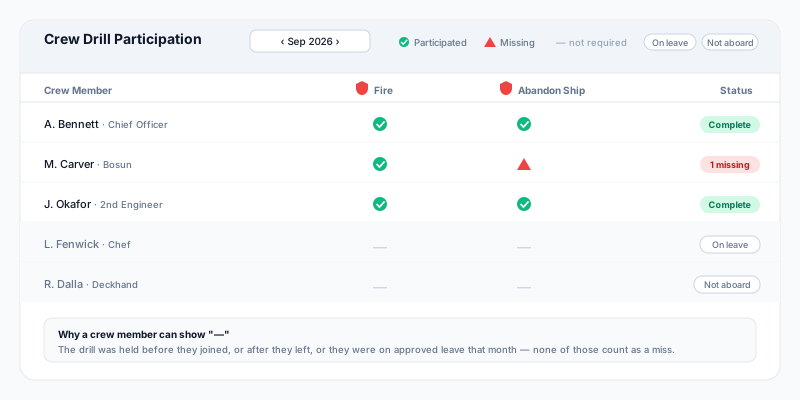
Below the matrix is a table showing, crew member by crew member, whether they attended the month's Fire and Abandon Ship drills — the two every person aboard must take part in.
- •A green tick means they attended
- •A red triangle means they were on board and did not
- •A dash means it was not required of them
- •On leave and Not aboard rows are informational — they are not counted as misses
Use the arrows to step back through previous months. When you look at a past month, crew who have since left the vessel are not shown.
Exports and Reports
Export at the top of the matrix produces the whole year as a CSV or a landscape PDF, with the completion date in each cell and a compliance percentage per drill type. This is the document to hand an inspector or attach to an audit.
Two deeper reports live under Reports on the module bar:
- •Drill Compliance Report — a month at a time, one row per drill requirement, showing its source (SOLAS, ISPS, MARPOL, your SMS), its status, whether evidence is attached, and whether it has been signed off. It also draws a strip of the whole year per drill.
- •Drill Participation Matrix — a month at a time, one row per crew member and one column per required drill, with a per-person status. If you do not have permission to see the whole crew, you see your own row.
Both export to PDF and CSV.
Email Reminders
Two drill notifications go out, by default in the Monday morning digest — you can change the timing, or switch them off, in your notification preferences:
- •Safety Drill Due Soon — a drill is coming up (7 days ahead by default; your vessel can set a different warning period per drill)
- •Safety Drill Overdue — a required drill has passed its date unrecorded
Drill types switched off for your vessel, and ad-hoc drills, never generate either.
Who Can Do What
- •Read the matrix and reports — anyone with Safety access on the vessel
- •Record and edit drills — anyone with Safety read & write
- •Approve a sign-off, and change any of the schedule settings — captain or head of department with Safety read & write, an account owner, an account admin, or a superadmin
Tips
- •Record the drill the day you run it. The panel remembers who was on board on the date you enter, so a late entry means picking the crew list apart by hand.
- •Do not tick everything by reflex. The unticked items are the useful part of the record, and they are what the debrief should explain.
- •Write the debrief as if a PSC inspector will read it — because one will. "Fire party slow to muster, 4 min 20 s; boundary cooling not set until prompted" is a good drill log. "All OK" is not.
- •Raise deficiencies as action items rather than burying them in the notes. They come back up at the next drill of that type.
- •New crew must take part in an emergency drill within 24 hours of joining. Record it with them ticked as participating crew.
- •Rest hours and drill logs are cross-checked by inspectors. If a drill ran during someone's rest period, make sure the Hours of Rest entry says so too.
- •Use the category filter and the year export together before an audit — one filtered PDF per category is easier to hand over than the whole grid.