This is the setup behind the drills matrix: which drills your vessel has to run, how often, from when, and what must be filled in before one counts as complete. It is normally done once when a vessel is onboarded, then revisited when the flag state, the SMS or the operation changes.
Day-to-day recording is covered in Recording Safety Drills.
Where to Find It
- •Open the Safety module
- •Click Settings (top right of the safety area)
- •Choose the Drills tab
You need Safety read & write access, or to be an account owner, account admin or superadmin. Crew with view-only Safety access will not see the page.
Step 1 — Build the Year
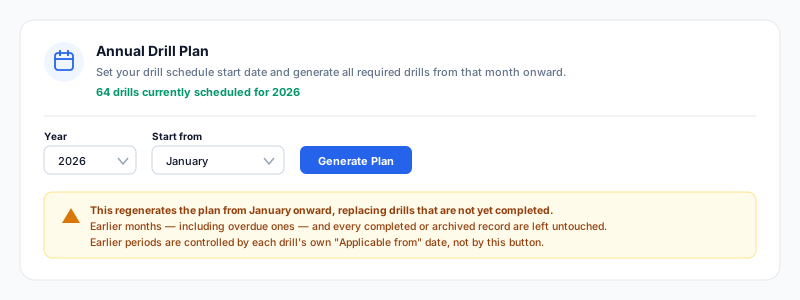
The Annual Drill Plan card at the top creates the squares you see on the matrix.
- •Pick the Year (this year or the next two)
- •Pick the month to Start from
- •Click Generate Plan
The card tells you how many drills are already scheduled for the year you have selected, or warns you in amber if there are none.
What Generate Plan changes — and what it leaves alone
It regenerates the plan from your chosen start month onward, replacing drills that have not been completed. It does not touch:
- •any month before the start month, including overdue ones
- •any completed drill
- •any archived record
So it is safe to re-run mid-year: pick the current month as the start, and the history behind you is untouched. Earlier periods are governed by each drill's own Applicable from date, described below — not by this button.
Step 2 — Choose Which Drills Apply
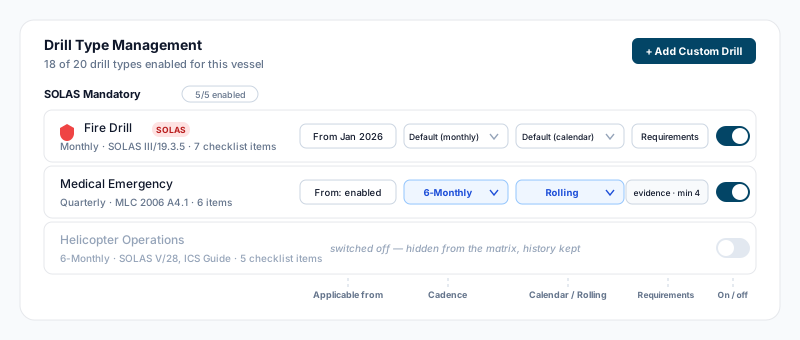
Below the plan card is Drill Type Management — every drill type available to the vessel, grouped by category, with a count of how many are switched on.
Sealogical ships a standard catalogue of 20 drill types, each with the regulation it comes from and a default cadence:
SOLAS Mandatory
| Drill | Default cadence | Reference |
|---|---|---|
| Fire Drill | Monthly | SOLAS III/19.3.5 |
| Abandon Ship | Monthly | SOLAS III/19.3.4.1 |
| Enclosed Space Entry & Rescue | Every 2 months | SOLAS III/19.3.6 |
| Emergency Steering | Quarterly | SOLAS V/26.4 |
| Security Drill (ISPS) | Quarterly | SOLAS XI-2 / ISPS Code A/13 & B/13.6 |
Operational
| Drill | Default cadence | Reference |
|---|---|---|
| Man Overboard | Quarterly | Industry best practice |
| Oil Pollution (SOPEP) | Quarterly | MARPOL Annex I, Reg 37 |
| Emergency Towing | Quarterly | Good seamanship practice |
| Flooding / Damage Control | Quarterly | Good seamanship practice |
| Medical Emergency | Quarterly | MLC 2006, Standard A4.1 |
| Collision / Grounding | Quarterly | Good seamanship practice |
| Emergency Response with Office | Annual | Company emergency response plan |
Security
| Drill | Default cadence | Reference |
|---|---|---|
| Citadel / Muster in Secured Area | Monthly | BMP5 |
| Cybersecurity | Quarterly | IMO MSC-FAL.1/Circ.3/Rev.2 |
| Bomb Threat | Every 6 months | Ship Security Plan |
| Contraband Search | Every 6 months | Ship Security Plan |
| Stowaway Search | Every 6 months | FAL Convention, IMO Res A.871(20) |
Specialized and Regional
| Drill | Default cadence | Reference |
|---|---|---|
| Helicopter Operations | Every 6 months | SOLAS V/28, ICS Guide |
| Evacuation (Guest) | Quarterly | Large Yacht Code |
| NTVRP QI Notification | Quarterly | 33 CFR 155, OPA 90 |
Switching a drill on or off
The toggle at the end of each row turns the drill on or off for this vessel. Switching one off removes it from the matrix and stops its reminder emails; nothing already recorded is deleted. Switch it back on and the history reappears.
Every row also carries four controls, described next.
Applicable From — the date the requirement started
The first button on the row shows either From: enabled or a month, e.g. From Jan 2026. It answers: since when has this drill applied to this vessel?
Set it to the start of the year, the vessel's operational date, or the month it entered your management. The whole schedule — including past, unrecorded periods — is generated from that date.
- •Click the button
- •Pick the month
- •Give a reason (required — it goes on the audit trail with your name and the date)
- •Click Save
Clear (schedule from enable date) removes the date and schedules from the day the drill was switched on instead.
Historic periods
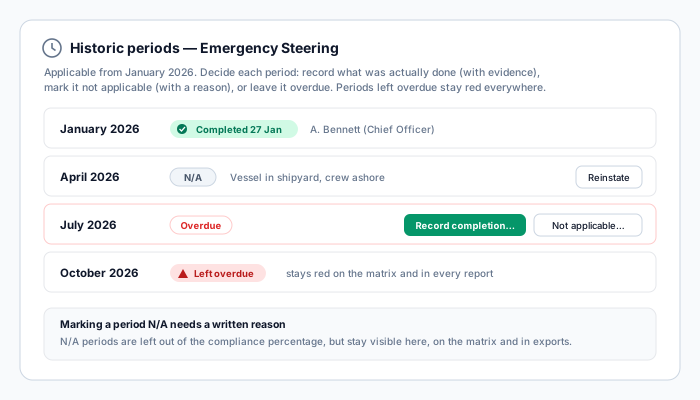
Setting a date in the past creates periods that have already been and gone, so Sealogical opens a review straight away rather than leaving you a wall of red squares. You can also reopen it later from the same dialog — Review historic periods…
For each past period, choose one of three:
- •Record completion… — it was done; enter it now, with evidence
- •Not applicable… — it genuinely did not apply, e.g. "vessel in shipyard, crew ashore". A written reason is required. N/A periods stay visible on the matrix and in exports, but are left out of the compliance percentage
- •Leave it overdue — an honest gap. It stays red on the matrix and in every report
An N/A period can be put back later with Reinstate, either here or by clicking its square on the matrix.
Cadence — how often this vessel runs it
The second control is a dropdown, showing Default (monthly) or whatever the catalogue says. Change it to run a drill more or less often than the standard: Weekly, Fortnightly, Monthly, 2-Monthly, Quarterly, 6-Monthly or Annual. Choosing Default puts it back to the catalogue cadence.
This is per vessel — it changes nothing on any other vessel — and the matrix is rebuilt for it straight away.
Raising the cadence is common where a flag state or a charterer requires more than the SOLAS minimum. Lowering it below a SOLAS minimum is your decision to justify: the platform will do as it is told.
Calendar or Rolling
The third control decides how "due" is worked out.
- •Calendar — the drill is due within fixed calendar periods. A quarterly drill sits in four fixed months of the year, and if you run it on the 2nd of the month or the 28th, the next one is still due in the next quarter. This is the default and suits most drills.
- •Rolling — the next one is due a fixed interval after the last completion. Complete a quarterly drill on 20 March and the next is due 20 June. The matrix shows one open occurrence at a time rather than a fixed grid.
Changing this rebuilds that drill's schedule.
Completion Requirements
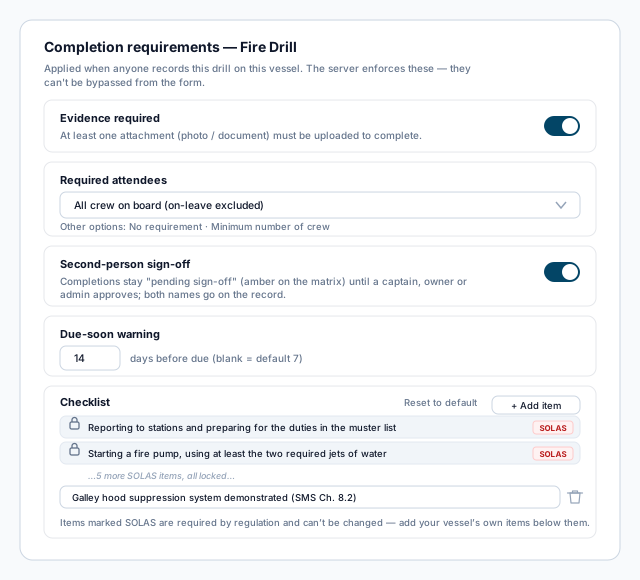
The fourth control opens Completion requirements. Its button label summarises whatever is set — e.g. "evidence · min 4 · sign-off" — or just reads Requirements when nothing is.
These are enforced on the server. Crew cannot get past them by leaving a field blank.
- •Evidence required — at least one attachment must be uploaded before the drill can be completed.
- •Required attendees — No requirement, All crew on board (crew on leave are excluded automatically), or a Minimum number of crew.
- •Second-person sign-off — the completion sits as "pending sign-off" (pale amber on the matrix) until a captain, owner or admin approves it. Both names go on the record.
- •Due-soon warning — how many days before the due date the drill turns amber and the reminder email goes out. Blank means the default of 7 days; you can set anything from 1 to 60.
Editing a drill's checklist
The same dialog changes the checklist crew see when they record the drill. How much of it you can change depends on where the drill comes from:
| Drill | What you can change |
|---|---|
| Fire Drill, Abandon Ship, Enclosed Space Entry & Rescue, Emergency Steering | The SOLAS items are pinned — locked rows carrying a red SOLAS badge, which cannot be reworded, reordered or removed. You add your vessel's own items underneath them. |
| Security Drill (ISPS), and every Operational and Security drill | The whole list. Add, reword or remove anything. |
| Helicopter Operations, Evacuation (Guest), NTVRP QI Notification | Nothing — these keep a fixed checklist. |
| Custom drills | Their checklist is edited through the pencil (Edit) button on the drill's own row, not here. |
Why the SOLAS four are a floor and not a locked list. SOLAS III/19 and V/26.4 say each drill shall include the items listed. That is a minimum, not a maximum — nothing stops a vessel drilling more than the regulation asks. So the regulation items stay exactly as written and whatever your SMS adds sits below them. The Security Drill (ISPS) is the exception inside that group: the drill itself is mandatory under ISPS A/13, but its checklist content comes from ISPS Part B, which is guidance, so the whole list is yours.
Reset to default puts the list back to the standard one, on any drill you can edit — on a SOLAS drill that means removing your own additions and leaving the regulation items.
Once a vessel has added items to a SOLAS drill, the two kinds are told apart on the recording form as well: the regulation items carry the same small red SOLAS tag there, so crew can see at a glance which came from the rule book and which from the vessel.
An edited checklist applies to this vessel only — everyone else keeps the standard one. It is guidance, not a gate: crew are never blocked from completing a drill because an item does not apply.
Custom Drills
+ Add Custom Drill (top right) creates a drill type of your own — an emergency generator test, a tender recovery exercise, anything your SMS requires that is not in the standard catalogue.
- •Drill Name (required)
- •Category — any heading on the matrix, SOLAS Mandatory included. This decides only where the drill appears. A drill you created never carries the red shield and never counts toward the SOLAS compliance percentage, whichever heading you file it under — the dialog says so on screen when you pick SOLAS Mandatory.
- •Frequency — Weekly through Annual, or One-off for an ad-hoc drill with no cadence
- •Description (optional)
- •Source and Reference (optional) — where the requirement comes from, e.g. Vessel SMS and "SMS Ch. 8.2". This shows on the matrix, the completion form and both exports, so the drill can be traced back to the rule that demands it
- •Checklist — as many items as you need, shown as guidance tick-boxes
- •Apply to entire fleet — account admins only, and only where the vessel belongs to a fleet
A new custom drill is scheduled immediately, so it appears on the matrix without your having to press Generate Plan again.
Fleet-wide cannot be undone by editing. A fleet-wide drill type is added to every vessel in the fleet, and you are asked to confirm before it is created. To reverse it you have to delete the drill type and create it again as vessel-specific.
Editing, deactivating and deleting
Custom drill rows carry a pencil (edit) and a bin (delete).
- •Edit changes the name, category, frequency, source and checklist.
- •Delete is only offered while the drill type has no records against it. Empty scheduled squares are cleared with it, and you are told how many.
- •If it does have history, Sealogical refuses the delete and offers Deactivate instead — the drill disappears from the schedule and stops generating reminders, and every past record is kept.
A fleet-wide custom drill can only be edited or deleted by an account admin on the fleet that owns it.
Who Can Change These Settings
- •A captain or head of department with Safety read & write
- •An account owner or account admin
- •A superadmin
Crew with view-only Safety access can see the matrix but not this page.
Tips
- •Set Applicable from before you press Generate Plan. It is what decides whether last year shows as a clean slate or as twelve months of red.
- •Take a new vessel through the historic-periods review honestly. A drill log with three N/A periods and a written reason survives an inspection; one with invented completions does not.
- •Give a custom drill a Source and Reference. Twelve months later nobody remembers why the drill exists, and the reference is what tells an inspector it was required rather than optional.
- •Use Deactivate, not Delete, whenever a drill has been run. Deletion is only there for a type created by mistake.
- •If a whole fleet works to the same SMS, create shared drills as fleet-wide once rather than repeating them on every vessel — but check the fleet is right first, because the scope cannot be changed afterwards.
- •After changing a cadence or a calendar/rolling setting, open the matrix and check the drill fell where you expected before you rely on it.