Why It Matters
MLC 2006 and STCW require every seafarer to have minimum rest periods recorded and signed off monthly. Falsified records are a criminal offence and a top PSC deficiency. Sealogical tracks compliance automatically and stores signed records for PSC inspection.
Getting Started
- •Click the bed icon (🛏️) in the header bar to open your Hours of Rest page
- •You will see a monthly calendar showing the status of each day
- •Click any day to open the day entry view where you log your rest periods
On desktop, the calendar stays visible on the left while you edit a day on the right. On mobile, clicking a day opens a full-screen entry view.
On Your Phone
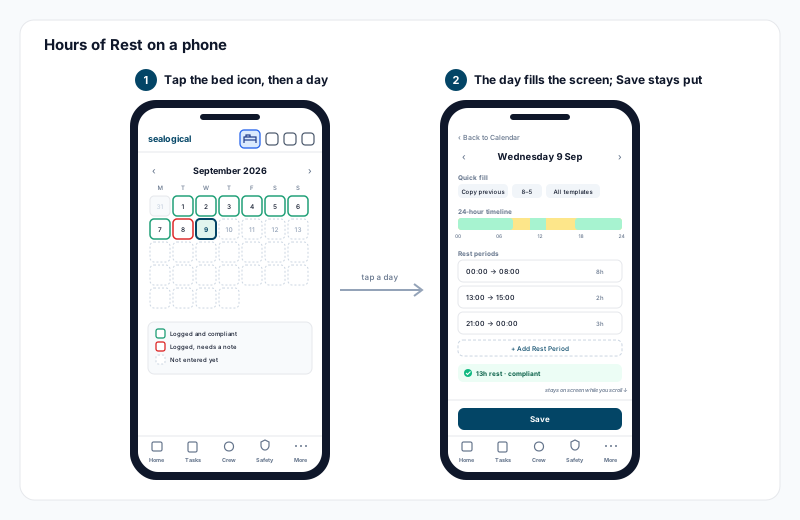
On a phone the calendar fills the screen; tap a day and the day entry opens full screen on its own, with Save pinned above the tab bar so it is always in reach, and Back to Calendar at the top. Most crew log their rest from their phone, so if you have not yet saved Sealogical to your home screen, see Sealogical on Your Phone — it covers signing in on a phone and adding the icon so this page is one tap away.
Entering Rest Periods
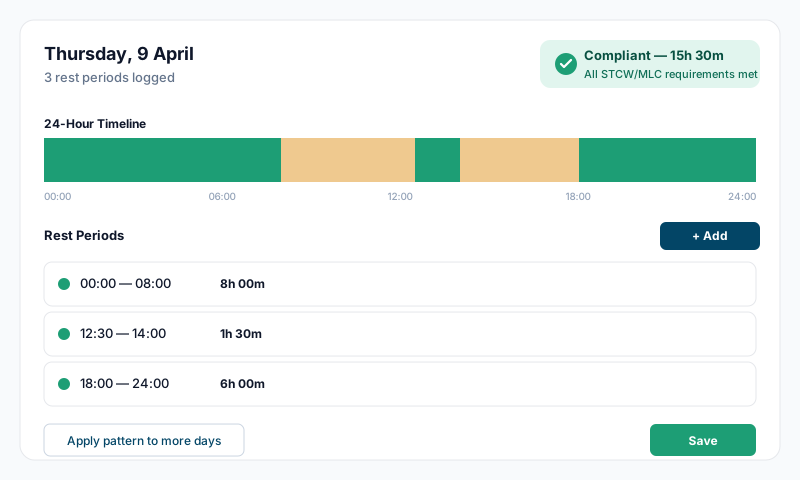
For each day, you add your rest periods — the times you were not working. Work hours are calculated automatically (24 hours minus your rest).
- •Click a day on the calendar
- •Click + Add Rest Period
- •Set the start time and end time for each rest period using the dropdown selectors
- •For overnight rest (e.g. 22:00 to 06:00), the system automatically detects the overnight boundary and marks it as "Next day"
- •Add as many rest periods as needed — most days have 2 or 3
- •Click Save when done
The 24-Hour Timeline at the top of the entry page shows your rest (green) and work (amber) periods visually, so you can quickly spot gaps or errors.
Quick Fill Templates
You do not need to enter rest periods manually every day. Use templates to fill a day in one click:
- •Copy Previous — copies yesterday's rest pattern to today
- •8-5 — standard day shift (rest 00:00–08:00 and 17:00–00:00)
- •All Templates — opens the full template list including:
- •12h Day Shift, Night Shift, 6 on / 6 off, Split Shift, Day Off
- •Any custom templates you have saved
To save your own template, enter your rest pattern for a day, save it, then click Save current pattern as template and give it a name. Your template will appear in the All Templates list for future use.
Apply to More Days
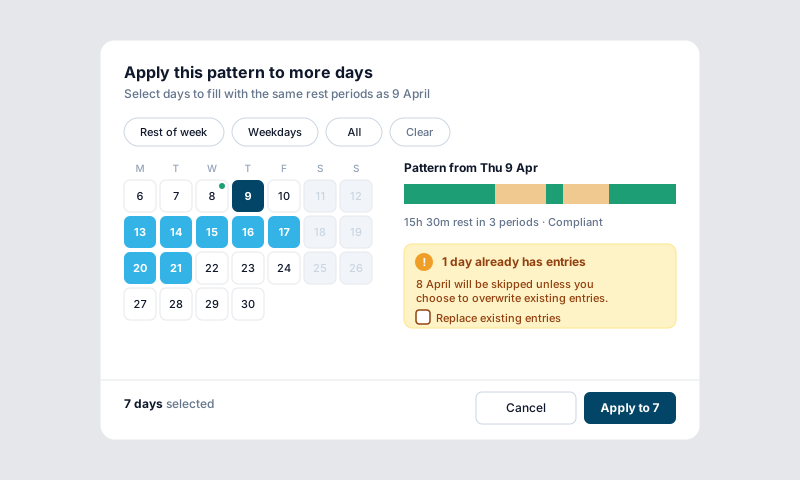
After saving a day, you can apply the same pattern to multiple other days at once:
- •Save your rest periods for a day
- •Click Apply this pattern to more days
- •A calendar appears — click the days you want to fill
- •Use the quick-select buttons: Rest of week, Weekdays, or All
- •If any selected days already have entries, you will be asked whether to replace them
- •Click Apply — the pattern is saved to all selected days
This is the fastest way to fill an entire month when you work the same schedule.
Compliance
The system automatically checks your rest periods against STCW and MLC requirements:
- •Minimum 10 hours rest in any 24-hour period
- •Minimum 77 hours rest in any 7-day period
- •Rest may be split into no more than 2 periods, one of which must be at least 6 hours
- •The gap between rest periods must not exceed 14 hours
Compliance Indicators
- •Green — compliant with all STCW/MLC requirements
- •Red — one or more violations detected
If a day is non-compliant, the specific violations are listed (e.g. "Less than 10 hours rest in a 24-hour period"). You must add a crew note explaining the reason before the month can be submitted.
Calendar Status Colours
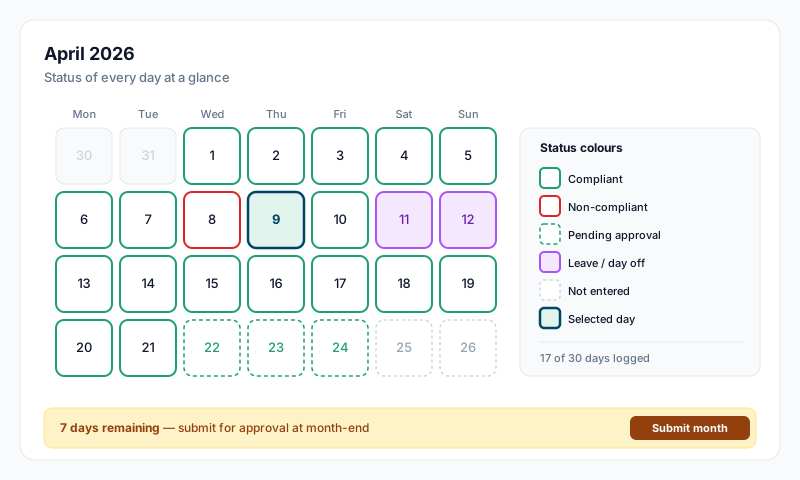
- •Green border — compliant, rest logged
- •Red border — non-compliant, violation detected
- •Green outline (no fill) — pending approval
- •Purple — leave or day off
- •Dashed border — no entry yet
Weekly Summary
On desktop, a week strip below the calendar shows the 7 days around the selected day with mini rest bars, total rest hours, and compliance ticks. This gives you quick context without clicking into each day.
Monthly Submission and Approval
At the end of each month, the crew member submits their complete month for approval:
- •Fill in all days for the month
- •Add crew notes for any non-compliant days
- •The calendar sidebar shows how many days are pending entry
- •Once all days are filled, click Submit for Approval
- •The captain or designated approver reviews and approves the submission
- •Approved months are locked and stored for PSC inspection
Tips
- •Record your hours daily — it is more accurate and takes less time than catching up at the end of the week
- •Use Copy Previous or Apply to more days when your schedule repeats — most crew can fill a month in under a minute
- •Record exceptions honestly (drills, emergencies) and add a note explaining why
- •PSC inspectors compare rest records against drill logs and watchkeeping records — they must be consistent
- •Non-compliant days are not a problem if they are recorded honestly with an explanation — falsified records are