Sealogical is not an app you download from the App Store or Google Play. It is a website that behaves like an app on a phone: you sign in once, save it to your home screen, and from then on you tap an icon like anything else on your phone. Nothing to install, nothing to update.
This guide covers three things: signing in on a phone, saving the icon, and what is different about the phone layout.
Before You Start
- •You need a login. The vessel sends you an invitation email with a link to set your password. If you have not had one, ask your captain or the office — crew cannot sign themselves up. (The Sign up link on the login page is for new companies, not for crew.)
- •Any modern phone browser works — Safari on an iPhone, Chrome on an Android phone.
- •You need an internet connection — ship Wi-Fi or a phone signal. Sealogical does not work offline.
Logging In
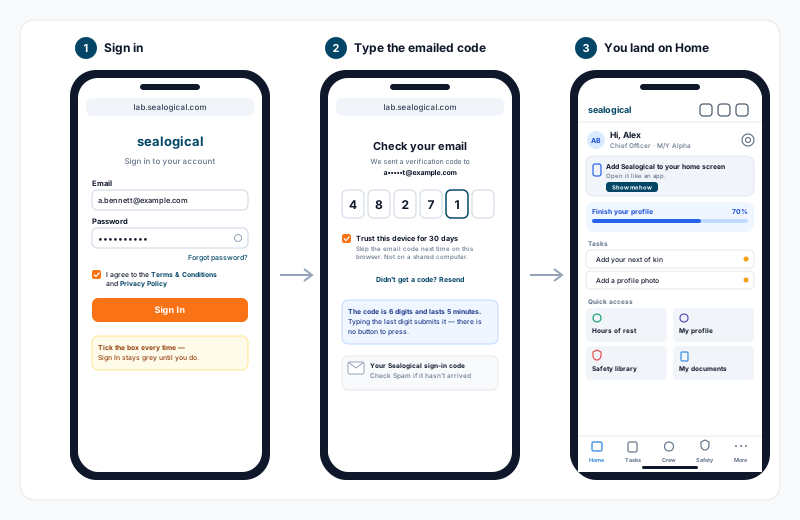
- •Open your phone's browser and go to lab.sealogical.com
- •Type your email and password. The eye icon shows the password so you can check it.
- •Tick I agree to the Terms & Conditions and Privacy Policy. You have to tick this every time you sign in — the Sign In button stays grey until you do.
- •Tap Sign In
- •The screen changes to Check your email. Sealogical has emailed you a 6-digit code. Open your email, read the code, and type it in. As soon as the sixth digit goes in, it submits itself — there is no button to press.
- •Before you type the code, tick Trust this device for 30 days if this is your own phone. Next time, the password alone signs you in — no code. Leave it unticked on a shared tablet or someone else's phone.
- •You land on your Home screen.
A few things worth knowing about the code:
- •It lasts 5 minutes. If it has expired, tap Didn't get a code? Resend and a fresh one is sent.
- •If nothing arrives, check your junk or spam folder before resending. Resend is available again 30 seconds after the last one.
- •The code is sent to the email address on your login, so the masked address on screen tells you which inbox to look in.
If you use an authenticator app
Some vessels ask senior crew to set up an authenticator app (Google Authenticator, Microsoft Authenticator, and so on). If yours is set up, you will not get an email code — instead the screen says Authenticator code, and you type the 6-digit number from the app. Everything else is the same, including Trust this device.
If you have forgotten your password
Tap Forgot password? under the password box, type your email, and tap the button. If there is an account for that address, you get a link by email to set a new password. The link comes from the same sender as your invitation, so check spam if it does not appear.
If it says "Sign in failed"
Check the email address is spelt right, then re-type the password using the eye icon to see it. After a number of wrong passwords in a row the login locks for a few minutes — the message tells you how long to wait. Waiting is the only fix; retrying resets the clock.
Saving Sealogical to Your Home Screen
Once you are signed in, save Sealogical to your home screen. From then on it opens like an app — full screen, no address bar, no typing the web address — and it keeps you signed in between visits.
Sealogical will offer to help. On your Home screen there is a card that says Add Sealogical to your home screen; tap Show me how and it walks you through the two steps. If you have dismissed the card, the same thing is under More at the bottom of the screen, as Add to home screen. The steps are also below.
On an iPhone or iPad (Safari)
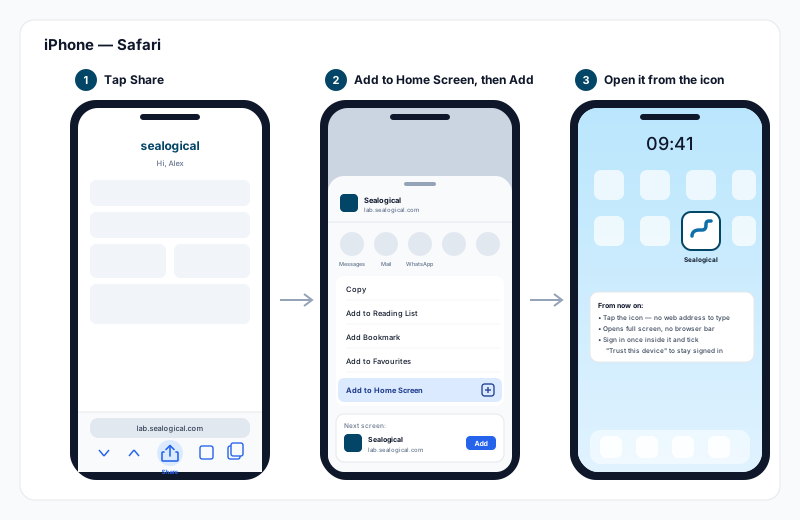
- •With Sealogical open in Safari, tap the Share button — the square with an arrow pointing up, in the bar at the bottom of the screen
- •Scroll down the list and tap Add to Home Screen
- •Tap Add in the top right
The Sealogical icon appears on your home screen with the name Sealogical. If you use Chrome on your iPhone instead of Safari, the same option is in Chrome's Share menu.
On an Android phone (Chrome)
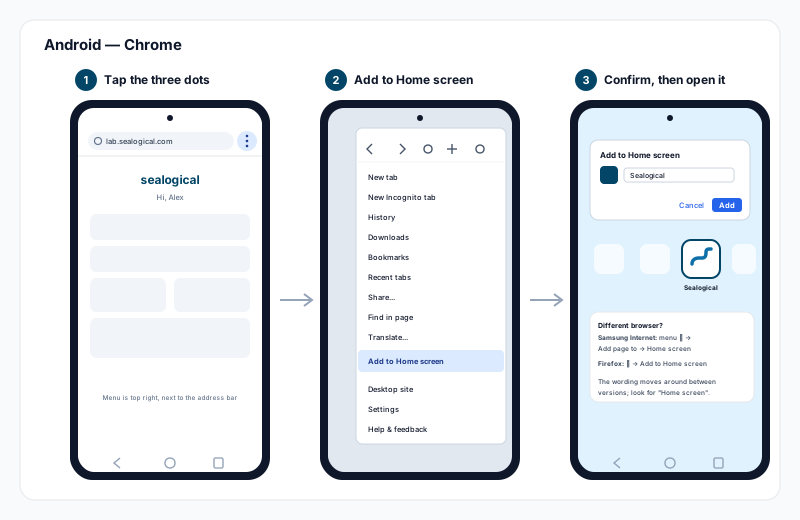
- •With Sealogical open in Chrome, tap the three dots in the top right, next to the address bar
- •Tap Add to Home screen
- •Tap Add to confirm
On Android the in-app card is not shown yet, so use the browser menu as above. Other browsers put the option in a slightly different place — in Samsung Internet it is the menu, then Add page to, then Home screen; in Firefox it is the three dots, then Add to Home screen. Whatever the browser, look for the words Home screen.
After you have added it
- •Tap the icon to open Sealogical. It opens full screen, straight to your Home.
- •Sign in once inside the icon, and tick Trust this device for 30 days. The icon is its own separate copy of the browser, so a sign-in you did in Safari or Chrome does not carry across to it — you sign in inside the icon once, and after that it stays signed in.
- •After 30 days it asks for a code again. That is normal. Tick Trust this device again and you are set for another 30 days.
- •It still needs a connection. The icon is a shortcut to the live site, not a copy of it, so it needs Wi-Fi or signal just like the browser did.
- •If something looks wrong after an update — a button missing, a page that will not load — close Sealogical fully (swipe it away from your recent apps) and open it again from the icon. An app that has stayed open for days can be running an older version of a page.
- •Got a new phone? Sign in on the new one and add the icon again — nothing about your account changes.
What Is Different on a Phone
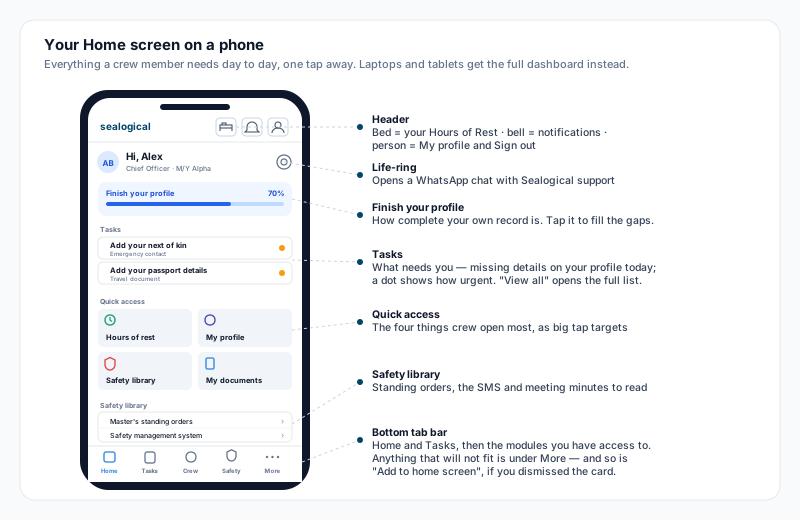
Sealogical knows when you are on a phone and gives you a different front page. Laptops, desktops and tablets get the full dashboard with the module cards; phones get Home — a screen built around what crew do most, sized for a thumb.
Home shows:
- •Hi, and your position and vessel at the top. The life-ring icon opposite opens a WhatsApp chat with Sealogical support.
- •Finish your profile — how complete your own record is, as a percentage. Tap it to add whatever is missing.
- •Tasks — the things that need you. Today that is any missing detail on your own profile: a photo, date of birth, nationality, contact number, home address, next of kin, passport. A coloured dot shows how urgent each one is, and View all opens the full list. When there is nothing left it says You're all caught up.
- •Quick access — four big tiles: Hours of rest, My profile, Safety library and My documents.
- •Safety library — the Master's standing orders, the safety management system and the safety meeting minutes, to read.
The bottom tab bar is the phone's version of the module bar. It always starts with Home and Tasks; after those come the modules you have permission to see — Crew, Safety, Certificates, Technical and so on. Only four fit across a phone, so anything beyond that is under More, which slides up from the bottom. Add to home screen lives in that More sheet too.
The header keeps three icons: the bed opens your own Hours of Rest, the bell opens your notifications, and the person opens a menu with My profile and Sign out. The vessel name and your email address are hidden on a phone to save room — they are still there on a laptop.
Inside the modules, pages reflow to one column. Long forms scroll; the buttons you need most, such as Save, stay pinned at the bottom of the screen so you never have to scroll back down to find them. Where a laptop shows a row of tabs, a phone shows a dropdown with the same choices.
Hours of Rest on Your Phone
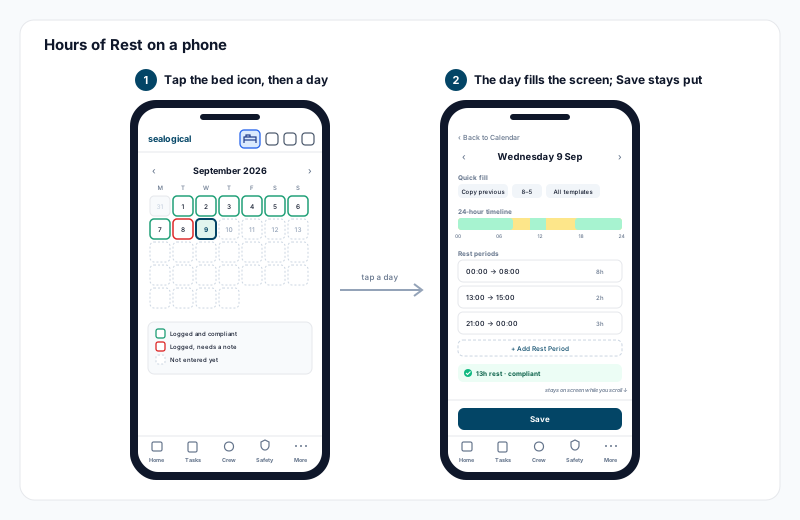
Hours of Rest is the screen most crew use on their phone every day, so it is worth knowing how it fits.
- •Tap the bed icon in the header, or the Hours of rest tile on Home
- •The month calendar fills the screen. Green outlines are days already logged and compliant, red outlines are days that need a note, dashed boxes are not yet entered.
- •Tap a day and it opens full screen, on its own. The quick-fill buttons, the 24-hour bar and your rest periods are all there, one above the other.
- •Add or change your rest periods, then tap Save — it is pinned above the tab bar, so it is always on screen however far you have scrolled.
- •Back to Calendar at the top returns you to the month.
Everything else — templates, applying a pattern to several days, submitting the month — works exactly as described in Recording Hours of Rest.
Notifications on Your Phone
Sealogical does not send phone push notifications — the kind that buzz and appear on your lock screen. Your alerts arrive two ways: in the app under the bell icon, and by email, according to the preferences you set. If you want to be sure of seeing something quickly, keep email notifications on for it. See Notifications: Bell, Inbox & Email for how to choose.
Signing Out and Shared Devices
Tap the person icon in the header, then Sign out.
On a shared device — the bridge iPad, a crew-mess tablet — do not tick Trust this device, and sign out when you are done. Trusting a shared device means the next person to pick it up gets straight into your account with just your password.
Tips
- •Add the icon on day one. Everyone who does stops thinking about the web address; everyone who does not ends up searching for the login page every time.
- •Tick Trust this device on your own phone. It is the difference between an app that opens instantly and one that asks for an email code every visit.
- •Log your rest before you turn in. The bed icon is one tap from anywhere, and a day takes under a minute with Copy previous.
- •The life-ring on Home is real support — it opens a WhatsApp chat with a person at Sealogical. Use it when something is genuinely stuck rather than fighting it.
- •Keep the app closed when you are not using it. Opening it fresh from the icon each time makes sure you are on the current version.